
23 October 2026 · Editorial Team
Can you take video calls in an office phone booth?

Yes, you can take video calls in an office phone booth when you can frame yourself clearly, hear and be heard, and maintain a reliable connection inside it. The booth provides a separate place to speak, but it does not replace your camera, microphone or internet connection, and an enclosed space is not a guarantee of confidential conversation.
- Video calls in a phone booth work when audio, camera framing and the connection suit the task.
- Check the outgoing picture and sound from inside the booth before an important meeting.
- Quell Workspaces supplies acoustic phone booths and meeting rooms for workplace use.
- Choose a meeting space rather than a solo booth when colleagues need to join you in person.
Why this matters
A place that works for a voice call does not automatically work well on camera. Your laptop needs a usable position, your face needs to be visible, and the person at the other end needs clear speech rather than distracting background sound.
For workplace teams sourcing a dedicated call space, the Office Phone Booth Folio is a relevant starting point. Assess the complete calling setup rather than treating the enclosure alone as the solution.
A successful booth video call depends on what the remote participant sees and hears, not just how quiet the booth feels to you. That distinction should guide both everyday use and your brief for a new call space.
Can you take video calls in an office phone booth?
Yes. Use an office phone booth for video calls when you are joining alone and the space supports your actual meeting tasks: speaking, listening, looking at the camera and sharing material where necessary.
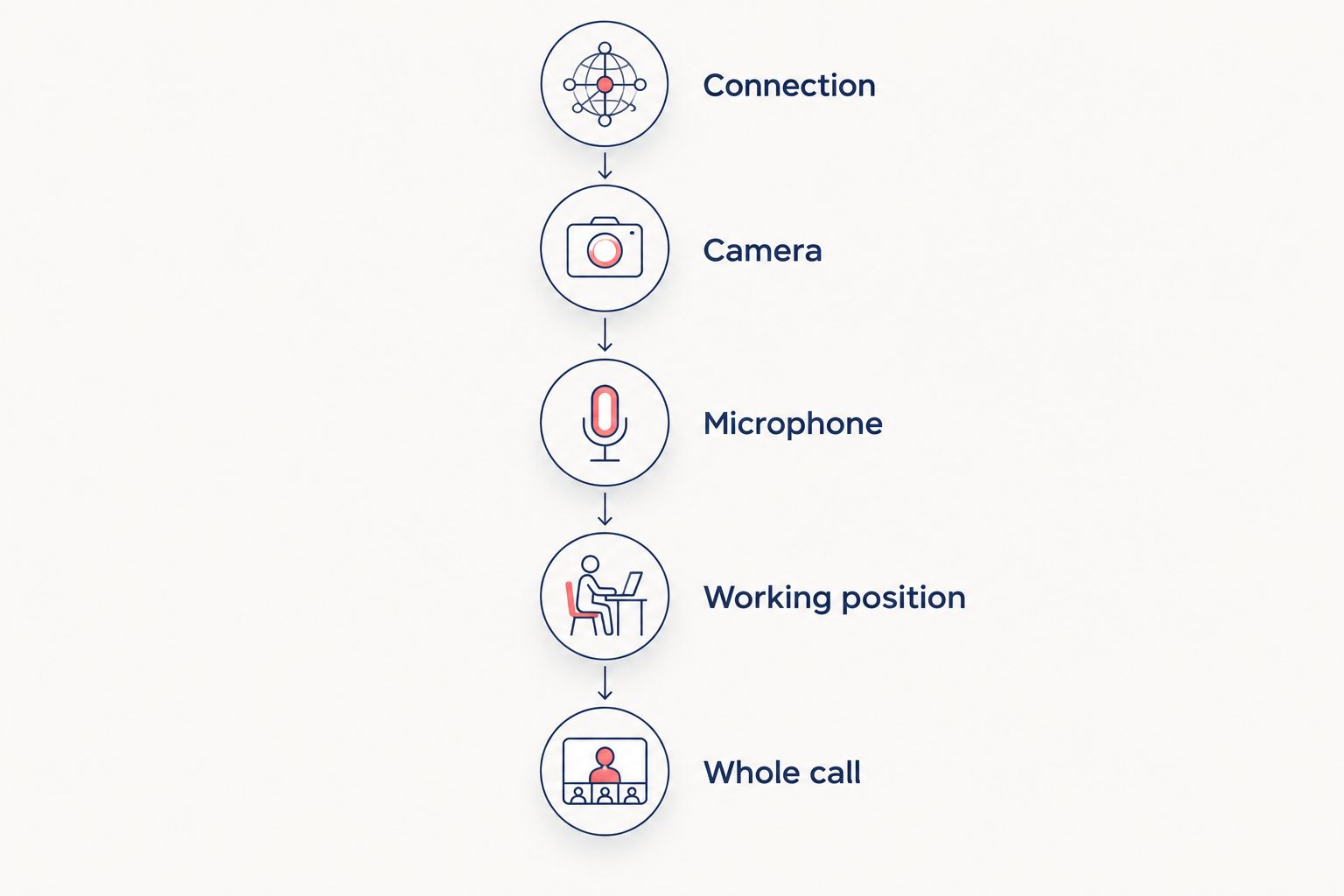
Before relying on the booth, work through this sequence with the device and meeting software you normally use:
- Check the connection. Join a test call from inside the booth with the door closed. Confirm that your picture and speech reach the other participant without repeated interruptions.
- Check the camera. Open the preview and sit or stand as you would during the meeting. Make sure your face is visible without holding the device throughout the call.
- Check the microphone. Speak at your normal volume and ask the remote participant whether your words are clear. Listen for unwanted background sound rather than judging only the volume.
- Check the working position. Put your notes and any other items you need within reach. Rehearse switching between the meeting window and shared material.
- Check the whole call. Ask the remote participant to describe both the picture and the sound. Correct the weakest part before using the space for an important conversation.
This is a practical user check, not an acoustic assessment or a substitute for product information. Its purpose is to establish whether your everyday equipment and the chosen space work together.
Choose the space around the call
The right space depends on who is physically present and what they need to do. A remote meeting with several participants does not require a large room if you are the only person joining from your office.
Conversely, a solo calling space is the wrong starting point when colleagues need to sit together and contribute from the same location. Plan for the people in the room, not just the names on the invitation.
| Space | Best for | Practical advantage | Limitation to check |
|---|---|---|---|
| Office phone booth | Joining a video call alone | Gives the caller a separate place away from the shared desk area | Device position, camera framing and room for the task still need checking |
| Meeting booth | Colleagues joining a remote meeting together | Keeps the local group in the same conversation space | The camera and microphone must capture everyone who needs to contribute |
| Existing meeting room | Calls involving shared documents or several local participants | Lets you use an established meeting space | A room booking does not confirm that the video equipment works |
| Open-plan desk | Calls where separation from nearby colleagues is unnecessary | Keeps your usual desk setup available | Nearby conversations, visible activity and your own speech remain part of the setting |
Choose a phone booth for a solo call; choose a shared meeting space for a local group. Neither choice removes the need to check the equipment.
Quell Workspaces is best suited to workplace teams sourcing acoustic phone booths and private meeting rooms directly from a manufacturer. The relevant choice is the space that matches your use case, rather than a larger enclosure by default.
Why video-call quality varies between booths
Different results do not necessarily mean the booth itself is at fault. The device, software settings and way you use the space all affect the outgoing call.
- Connection inside the enclosure. Test where you will actually sit or stand. A successful connection at a nearby desk does not establish how the call behaves inside the booth.
- Microphone selection. Confirm which microphone the meeting software is using. Connecting a headset is not the same as confirming that its microphone is selected.
- Camera position. A camera that points upwards or cuts off your face makes conversation less natural. Check the preview from your normal working position.
- Lighting direction. Look for a clearly visible face rather than judging the brightness of the space alone. Check for distracting glare or a bright background in the outgoing picture.
- Activity outside the booth. Listen for surrounding conversations and look for movement behind you. What feels unobtrusive in person can still distract on screen.
- The task during the call. Reading notes, typing and presenting place different demands on the workspace. Try the activity you expect to perform, not just a spoken greeting.
Change the relevant setting and test again. Replacing equipment before identifying the problem makes it harder to tell what actually improved the call.
Get the picture right without overcomplicating the setup
Start with the camera preview. Put yourself in the position you will use for the meeting, then check whether you can look towards the camera while still reading the screen comfortably.
Avoid a setup that requires you to hold a phone for the entire conversation. If the available position does not let you use the device as intended, choose another arrangement rather than compensating throughout the meeting.
Check the background as carefully as your face. Remove visible documents from the frame and look for movement through glazing. A blurred or virtual background changes the outgoing image, but it does not make the physical space private.
For a presentation, rehearse screen sharing before the call. Confirm that you can find the right window, return to the conversation and read your notes without repeatedly moving the device.
These checks are especially useful in shared booths, where the previous user’s preferred setup might not suit yours. Treat the camera preview as a final check, not as proof that the audio and connection are also ready.
Check sound from the listener’s side
Ask someone outside the booth to join a test call and listen. Your own impression of the space cannot tell you exactly what the microphone is sending.
Speak normally, pause, and ask what the other person hears during the silence. This helps separate unclear speech from unwanted background sound. If there is a problem, check the selected microphone and its position before changing other settings.
A headset is worth trying when you need listening audio kept close to you, but it is not automatically the answer to every sound problem. Confirm that both its microphone and earpieces are selected, then repeat the same speaking check.
If several devices join the same call from the same physical space, avoid leaving multiple microphones and loudspeakers active. Choose the device that will handle the room’s audio and mute the others as appropriate.
Do not use a subjective listening check to promise that speech cannot be heard outside. Call quality and speech privacy are separate questions, and both deserve attention when the conversation is sensitive.
Keep privacy separate from picture and sound quality
A clear video call tells you that the remote participant can follow the conversation. It does not establish who else can hear your voice, see your screen or enter the space.
Before discussing sensitive material, consider the setting as well as the meeting software. Look at what is visible through the booth, whether the space is reserved for your use and whether the conversation belongs there under your organisation’s own procedures.
Close unrelated documents before sharing your screen. Choose the intended application or window and check what the remote participant can see. Muting your microphone does not hide your screen, and turning off your camera does not stop microphone transmission.
Avoid treating words such as “private” or “soundproof” as an absolute promise about every conversation. Ask for the relevant product information and make a separate decision about the information you plan to discuss.
Use the booth as part of your privacy arrangements, not as a replacement for them. This keeps the decision tied to the actual conversation rather than the appearance of the enclosure.
What should go into a workplace video-call brief?
Describe the intended use before discussing a particular booth. “Staff joining individual client calls” gives a clearer starting point than a request for a quiet box.
Your brief should explain whether people will sit or stand, which devices they will use, whether they need to type during calls and whether local colleagues will ever join them. Include the need to read notes or share a screen where those tasks are part of normal work.
Separate requirements from assumptions. If you need power, a particular device arrangement or a specific equipment connection, ask what the proposed configuration includes. Do not assume that features shown in an example setting come with every product.
When discussing a Quell Workspaces phone booth, describe the call tasks first and confirm the relevant configuration against the supplied product information. That keeps the conversation focused on what the workplace needs without adding unsupported specifications.
For a shared meeting space rather than a solo booth, the guide to a meeting pod video-call workflow covers the related setup topic. Keep the distinction clear: a room-wide camera and microphone arrangement is a different task from positioning a laptop for an individual caller.
FAQ
Can I use my laptop for a video call in an office phone booth?
Yes, you can use a laptop when the booth gives you a usable working position and the connection supports the call. Check the camera preview, selected microphone and outgoing sound from inside the booth.
Do I need a separate webcam in a phone booth?
A separate webcam is not automatically necessary. Check whether your existing camera gives a clear picture from a practical position before adding equipment.
Should I wear a headset during a booth video call?
Use a headset when it improves the tested call setup or keeps incoming audio close to you. Confirm that the meeting software has selected the intended microphone and earpieces.
Can colleagues join me in a phone booth for a video meeting?
Use a space intended for the number of people joining in person. A meeting booth or meeting room is the relevant option when local colleagues need to contribute together.
Does a phone booth make a video call confidential?
A phone booth alone does not guarantee a confidential video call. Consider speech outside the enclosure, screen visibility, access to the space and your organisation’s procedures separately.
Why does my video call work at my desk but not inside the booth?
The connection or device setup inside the booth needs checking separately from your desk setup. Test in the actual calling position, then check the selected camera, microphone and audio output before changing equipment.
One last thing
The most useful final check happens at the other end of the call. Ask a colleague to describe what they see and hear while you speak, pause, type and share a document from the booth.
That feedback is more useful than simply asking whether the space feels quiet. Keep the setup that works, and make the essential settings easy for the next caller to check.


