
22 October 2026 · Editorial Team
How to connect an office meeting pod to your room booking calendar
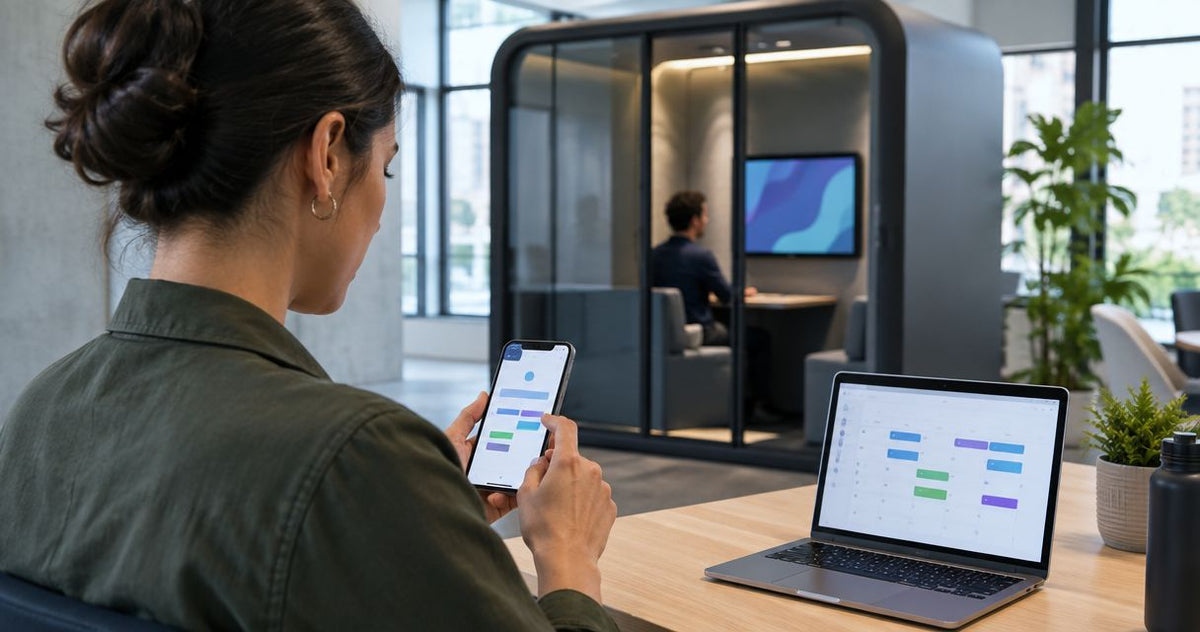
Instead of manually checking whether a meeting pod is free every day, connect it to your room booking calendar so staff can reserve it through Outlook or Google Calendar. In 2026, a 4-person meeting booth needs a calendar resource, booking rules and a test reservation; no physical connection to the pod is required.
- Connect meeting pod to room booking calendar software by creating a room resource in Microsoft 365 or Google Workspace.
- Quell Workspaces meeting pods use the same calendar workflow as conventional meeting rooms.
- Set the correct capacity, permissions, booking window and time zone before inviting staff to use the resource.
- In 2026, test new, changed and cancelled bookings before adding an optional door display.
Why this matters
An unlisted meeting pod depends on walk-up availability. Staff cannot check it before leaving their desks, two groups can expect to use it at the same time, and facilities teams have no consistent booking record.
A room resource fixes that problem by giving the pod its own calendar identity. Staff add the resource to a meeting invitation, the calendar checks its availability, and the booking appears on the pod calendar after acceptance. The process applies whether the pod accommodates one person or a larger group.
Quell Workspaces meeting pods are best for facilities teams that want pods managed through the same calendar as their other meeting rooms. A reliable 2026 setup makes the calendar the source of truth rather than asking people to check the pod in person.
Before you start
Prepare the following before opening the administration console:
- Calendar administrator access. You need permission to create resources in Microsoft 365 or Google Workspace. A standard user account normally cannot complete the setup.
- A fixed resource name. Use a short name that identifies the pod and its location, such as Pod North or Meeting Pod Second Floor. Apply the same name to the calendar, workplace directory and any door display.
- The stated seating capacity. Capacity affects room search results and can affect automatic acceptance when capacity enforcement is enabled.
- A booking policy. Decide who can book the pod, whether recurring meetings are accepted and how far ahead reservations can be made.
The non-obvious problem is delegated access. An administrator can create a resource successfully while ordinary users still cannot find or book it. Complete the setup with a standard test account, not the administrator account used to create the room.
For a 2026 rollout, record the resource name and policy before configuration begins. This prevents Microsoft 365, Google Workspace and an optional display from ending up with different labels or rules.
Choose the calendar resource model
Microsoft 365 and Google Workspace both treat a pod as a room resource, but their administration paths and user-facing booking tools differ.
| Platform | Resource type | User booking route | Pros | Cons |
|---|---|---|---|---|
| Microsoft 365 | Room | Outlook meeting invitation and Room Finder | Fits an existing Outlook booking process | Resource settings can be split between Microsoft 365 and Exchange administration |
| Google Workspace | Room resource | Google Calendar room search | Keeps room search inside Google Calendar | Building and sharing settings must be correct before users can find the pod |
Do not create the pod as a normal user account. A user calendar lacks the resource behaviour required for room search, capacity details and automatic booking responses.
Set up the Microsoft 365 room resource
Use this route when staff organise meetings through Outlook and the organisation manages calendars in Microsoft 365.
- Open the Microsoft 365 admin center with an account that can manage resources.
- Open Resources, then select Rooms & equipment.
- Select Add resource and choose Room.
- Enter the pod name, resource email address, location and capacity.
- Save the resource and allow it to appear in the organisation directory.
- Open the room mailbox settings and review Booking options.
- Enable automatic processing if valid requests should be accepted without manual approval.
- Set the booking window, maximum duration and recurring-meeting policy to match the workplace rules.
Create a new Outlook meeting from a standard staff account. Select Room Finder, search for the pod and add it to the invitation.
Expected result: the pod appears as a room, returns free or busy availability and sends a booking response after the invitation is submitted. If it appears only for administrators, review the address list and booking permissions before continuing.
Set up the Google Workspace room resource
Use this route when staff organise meetings through Google Calendar and resources are managed in the Google Admin console.
- Open the Admin console with resource-management access.
- Select Directory, then Buildings and resources.
- Open Manage resources and select Add resource.
- Choose the building, enter the resource name and add the stated capacity.
- Save the room and confirm that its calendar is available to the intended users.
- Review calendar sharing so staff can see availability without exposing meeting details that should remain private.
- Open Google Calendar from a standard user account and create an event.
- Select Rooms, search for the pod and add it to the event.
Expected result: the pod appears in room search and its calendar accepts or declines the event according to the configured policy. If direct calendar search finds it but the room list does not, check the building assignment and resource details.
Configure the booking rules
The calendar connection works only when the resource policy matches how the pod should be used. Apply the same rules across every pod in the same use case so staff do not need to remember a different process for each room.
- Set a booking window that reflects how far ahead staff should reserve the pod.
- Set a maximum duration to stop short-call spaces being blocked for extended meetings.
- Decide whether recurring meetings are permitted. Declining recurring reservations protects availability but requires users to book each session separately.
- Configure external invitations if people outside the organisation need to appear on bookings.
- Check the time zone against the office calendar and user accounts.
- Decide whether meeting subjects and organiser names are visible on shared calendars or door displays.
A practical policy for a call-focused pod is a 30-minute default slot with a 60-minute maximum. A larger team pod can use longer limits when its main purpose is scheduled group meetings. These are policy examples, not fixed requirements.
Expected result: valid invitations are accepted, conflicting invitations are declined and the pod remains available for the meeting lengths it was intended to support.
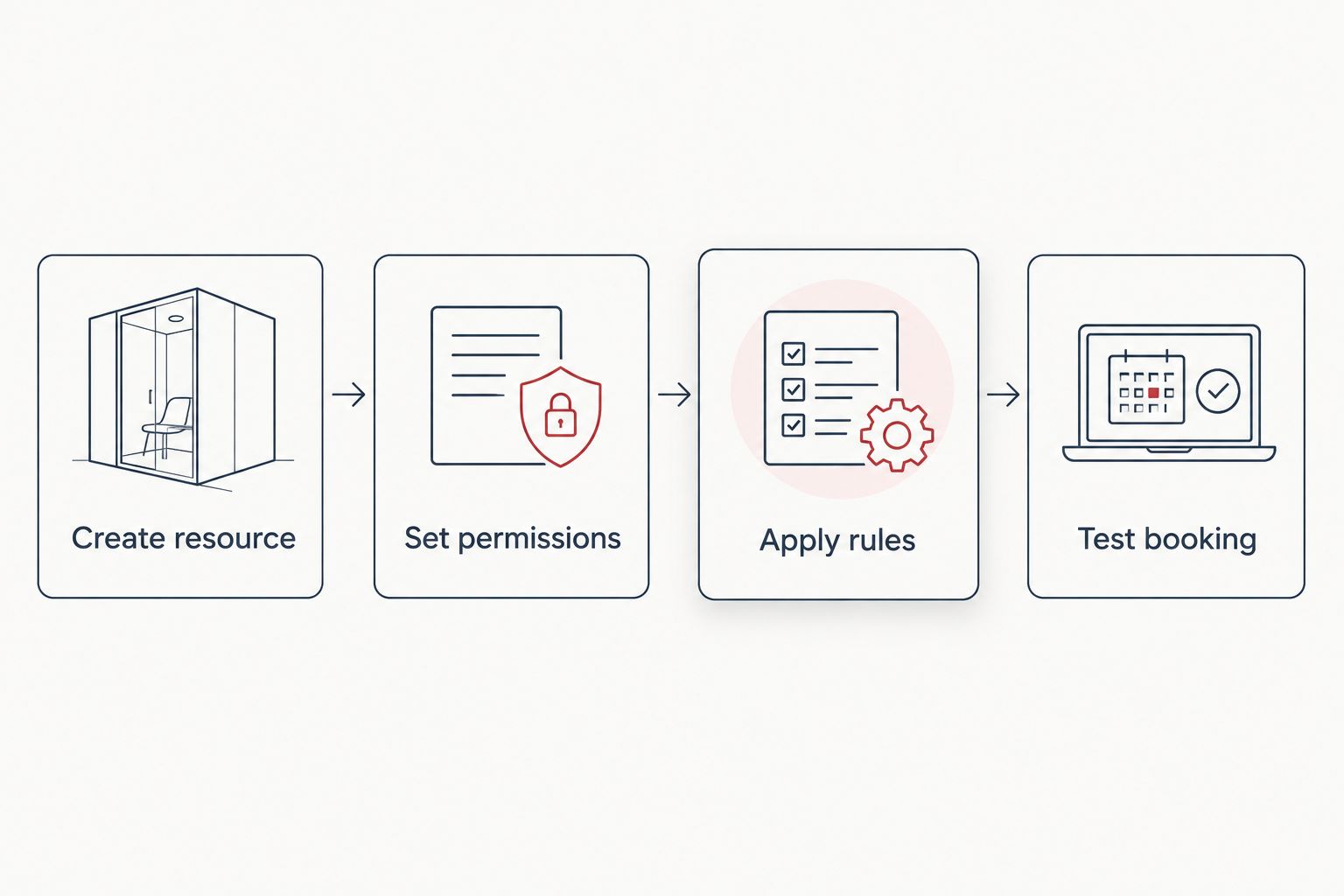
Match the calendar resource to pod capacity
Capacity gives staff useful search information and prevents unsuitable bookings when the platform is configured to enforce it. Enter the capacity stated for the selected product rather than estimating it from the available floor area.
| Product | Best for | Capacity stated in product data | Pros | Cons |
|---|---|---|---|---|
| Folio Office Pod - 2-4 Person | Small group bookings | 2–4 people | Covers calls involving more than one attendee | Needs clear rules if solo users and groups compete for the same resource |
| Quell+ - 4 Person Meeting Booth | Standard team meetings | 3–4 people | Gives small teams a dedicated bookable room | Solo reservations can consume a group-capacity resource |
| Quell+ - 6 Person Meeting Booth | Larger group meetings | 4–6 people | Supports meetings that exceed smaller pod capacities | Requires a booking policy that protects it for larger groups |


Update availability when a booking changes
A second workflow is needed when staff regularly move or cancel meetings. The resource must process the revised invitation rather than leaving the original time blocked.
- Open the existing calendar event rather than creating a replacement.
- Change the start time, end time or date.
- Confirm that the pod remains listed as a room attendee.
- Select Send update in Outlook or Save, then send the update in Google Calendar.
- Check the pod calendar to confirm that the original slot has cleared and the revised slot is occupied.
- Cancel the event and send the cancellation as a final test.
Expected result: changed bookings move to the new slot, cancellations release the original slot and conflicting updates receive the response defined by the resource policy.
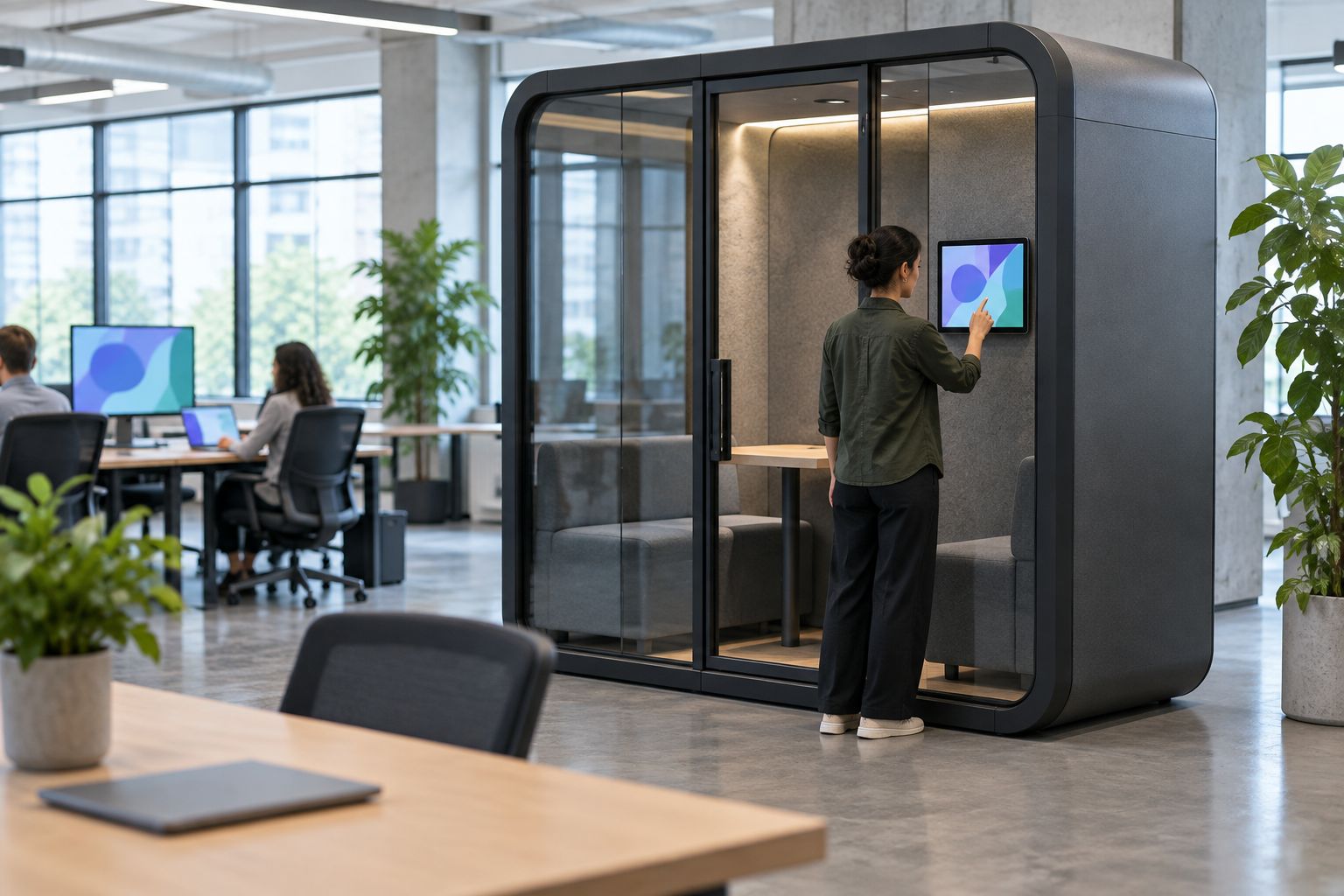
If a door display is used, connect it only after this calendar test passes. The display should read the existing resource calendar rather than operate as a separate source of bookings.
Troubleshooting
The pod does not appear in room search
Confirm that the resource was created as a room, assigned to the correct building and made visible to the intended users. Test from a standard account because administrator access can hide permission problems.
A valid booking is automatically declined
Check for a conflicting reservation, attendee-capacity enforcement, booking-window limits and maximum-duration rules. The decline response often identifies which rule rejected the request.
The pod accepts overlapping meetings
Review automatic processing and conflict settings. A resource configured for manual handling or conflict acceptance can allow requests that a standard room policy would reject.
A changed meeting leaves the original slot blocked
The organiser probably created a second event instead of updating the first one, or did not send the update to the room resource. Remove the original event from the organiser calendar and confirm that the cancellation reaches the pod calendar.
Availability differs between devices
Compare the resource, organiser and device time zones. Also refresh any door display or booking application that reads a cached calendar feed. A 2026 calendar setup should be tested on desktop and mobile before staff receive the booking instructions.
Customise your workflow
After one pod works correctly, create a naming standard for the remaining resources. Include the floor or zone when similar pods sit in different parts of the workplace, and keep capacity in the resource details rather than making the name unnecessarily long.
Quell Workspaces meeting pods can be represented as separate resources even when several models share the same floor. Each resource needs its own email address, calendar, capacity and booking policy. Do not use one shared calendar for multiple physical pods; staff need to know which specific space their invitation reserves.
Facilities teams planning pods alongside desks, chairs and collaborative areas can use the open-plan office furniture guide as a separate layout reference. In 2026, keep the layout plan and booking configuration aligned by using the same location names in both records.
FAQ
How do I connect a meeting pod to a room booking calendar?
Create the meeting pod as a room resource in Microsoft 365 or Google Workspace, then configure its capacity, permissions and booking rules. Test the resource from a standard staff account before announcing it.
Does a meeting pod need a physical calendar connection?
No. The calendar connection is a software resource representing the pod, not a cable or device attached to it. An optional door display can read the resource calendar after setup.
Can I add an existing pod to Outlook Room Finder?
Yes. Create a room resource in Microsoft 365, add its location and capacity, then confirm that standard users can find it through Outlook Room Finder.
Can I book an office pod through Google Calendar?
Yes. Add the pod as a room resource in the Google Admin console and make it available to the intended users. It will then appear under Rooms when they create an event.
Why is my meeting pod declining calendar invitations?
The request conflicts with a booking rule, existing event, capacity limit or permitted booking window. Review the decline response and compare the invitation with the resource settings.
Should every meeting pod have its own calendar?
Yes, each separately bookable pod needs its own resource calendar. One shared calendar for several pods does not tell users which physical space has been reserved.
One last thing
Do not launch the resource after testing only one successful booking. In 2026, the minimum useful check covers an accepted invitation, a conflicting invitation, a changed time and a cancellation. Quell Workspaces meeting pods are easier to manage when all four actions produce the expected calendar response before staff start booking them.


