
20 October 2026 · Editorial Team
How to connect an office phone booth to office WiFi
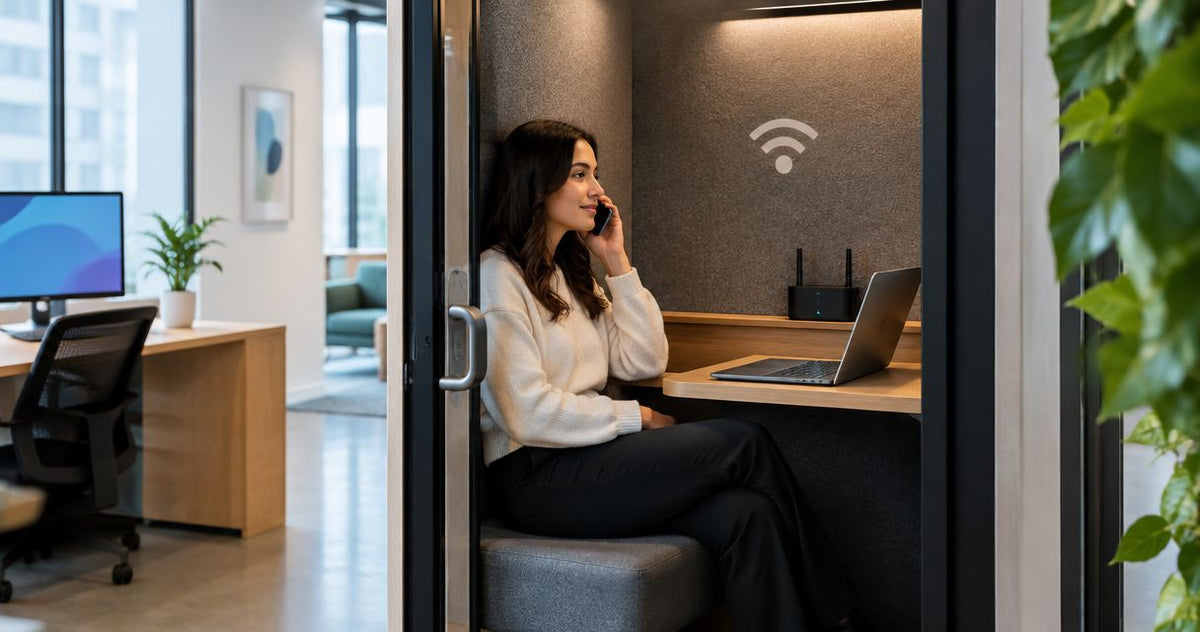
Instead of reconnecting your laptop whenever you step away from your desk, use your approved office Wi-Fi network inside the phone booth and check that it supports a call with the door closed. Usually, you connect the laptop or phone—not the booth itself—unless a separate network-enabled device has its own setup instructions.
- Office phone booth WiFi normally connects your laptop or phone, not the booth itself.
- Quell Workspaces office phone booths provide private workspaces; network connectivity needs a separate check.
- Test the approved office network with the door closed before relying on it for calls.
- Ask IT to investigate weak coverage rather than adding an unapproved extender.
Why this matters
A laptop showing a Wi-Fi connection does not prove that a video call will work properly inside a booth. Network access, wireless coverage and the calling application are separate parts of the same workflow.
For a private office phone booth, the useful test is straightforward: can you join your normal meeting, hear the other person and share your screen from your working position? Check that before making the booth part of your daily routine.
Quell Workspaces office phone booths are best for teams seeking private call space, not a replacement for office network coverage. Treat the workspace and its connection as separate requirements. A quieter place to speak does not establish how well wireless signals reach your laptop.
Before you start
- Have an approved device and network access. You need your work laptop or phone, the correct Wi-Fi network name and whatever sign-in method your organisation requires. Managed networks can require an account, a device profile or IT approval rather than a shared password.
- Have a way to verify a call. Use your normal calling application and arrange for a colleague to join. Check with IT before running network tests or changing settings on a managed device.
- Check the hidden dependency: network permission. A guest network can provide internet access without access to internal services. Confirm which network supports your actual work before troubleshooting the booth's location.
The instructions below use Windows 11 for the laptop connection. If your device is managed, follow your organisation's connection instructions wherever they differ; do not remove management settings or bypass sign-in requirements.
Network access
Start by establishing what needs to join the network. This prevents a common detour: looking for a booth Wi-Fi menu when the device making the call is your laptop.
- Identify the endpoint. For a laptop-based meeting, connect the laptop. For a mobile call over an internet calling application, connect the phone. Treat any separately supplied network-enabled accessory as its own device and follow its documentation.
- Confirm the network name with IT. Use the approved network's exact name, also called its SSID. Do not select a similarly named network simply because its signal looks stronger.
- Confirm the sign-in method. Establish whether the device uses a password, an organisational account or a managed connection profile. If a profile is required, ask IT to provide it before continuing.
- Check the same device outside the booth. Join the approved network near your usual desk and open a work resource you normally use. This gives you a reference point for the later booth test.
- Record the starting conditions. Note the device, network name, whether your work VPN is connected and which application you will test. Keep passwords out of shared notes.
Expected result: your device connects successfully outside the booth, and you know which network and sign-in method to use inside it. If this baseline fails, resolve access first; moving into the booth will not fix an account or device-enrolment problem.
Which Wi-Fi band should you use?
Some office networks use both 2.4 GHz and 5 GHz. These are frequency bands, not connection-quality scores, and a network can present them under the same name.
| Connection option | Best for | Advantage | Limitation |
|---|---|---|---|
| 2.4 GHz Wi-Fi | Locations where reaching the device through obstacles matters | Generally reaches farther through obstacles than 5 GHz | Shares spectrum with other wireless devices and can face congestion |
| 5 GHz Wi-Fi | Locations with good nearby coverage | Offers more channel capacity than 2.4 GHz | Generally has shorter reach through obstacles |
Let IT manage band selection where the office network controls it. If separate approved network names exist for each band, ask which one to test. Do not change router settings or assume that the higher-frequency option will perform better inside the booth.
Laptop connection
Connect from the position where you will actually work. Testing from the doorway leaves the main question unanswered: whether the connection works once you are seated and the door is closed.
- Open the Windows network controls. Select Start, then Settings, then Network & internet and Wi-Fi.
- Turn on Wi-Fi. If the control is unavailable or locked, contact IT rather than changing device-management settings.
- Choose the approved network. Select Show available networks, choose the confirmed network name and select Connect.
- Complete the required sign-in. Enter the credentials requested by your organisation. If an unexpected certificate or identity prompt appears, ask IT to verify it rather than accepting it without checking.
- Set reconnection appropriately. Use Connect automatically only where this matches your organisation's device policy. Automatic reconnection saves repeated selection, but it does not improve signal quality.
- Verify access inside the booth. Open a familiar work page and the application you need. Complete any approved browser-based network sign-in before starting your meeting.
Expected result: the laptop joins the approved network from inside the booth and opens the resources required for your work. A connected status without usable internet or internal access is not a completed setup.
If the device was already connected before you entered, you do not need to disconnect it just to repeat these steps. Confirm that it remains on the intended network, then proceed to the call check.
Keep the connection process simple
Avoid changing several settings at once. Switching networks, disabling a VPN and changing application settings together makes it difficult to identify which change affected the result.
On a managed laptop, start with the normal working configuration. If IT requests a comparison test, record the original settings and change only the requested item. Keep the test focused on reproducing the problem, not on finding a temporary workaround that conflicts with office policy.
Closed-door call check
A normal work call is more useful than judging the connection by the Wi-Fi icon alone. Use the same laptop, application and working position you intend to use for real meetings.
- Close the booth door. Sit or stand in your normal working position and leave the laptop where you intend to use it.
- Join a call with a colleague. Speak in both directions. Ask whether your speech breaks up, arrives late or disappears intermittently.
- Use the functions your work requires. Turn on the camera if you normally use video, then share a document or application if screen sharing is part of your meetings.
- Check the work connection. Open any internal resource you need during the call, using the required VPN where applicable. General internet access does not establish access to your organisation's systems.
- Compare with the outside reference. If the call fails, repeat the same activity just outside the booth using the same device and network. Record whether the problem follows the location.
- Document the outcome. Note the time, booth location, device, network name and exact symptom. State whether the outside comparison worked; that distinction gives IT a useful starting point.
Expected result: you can complete the activities your calls require with the door closed. If speech breaks up or the connection drops, keep the setup unresolved until the cause has been investigated.
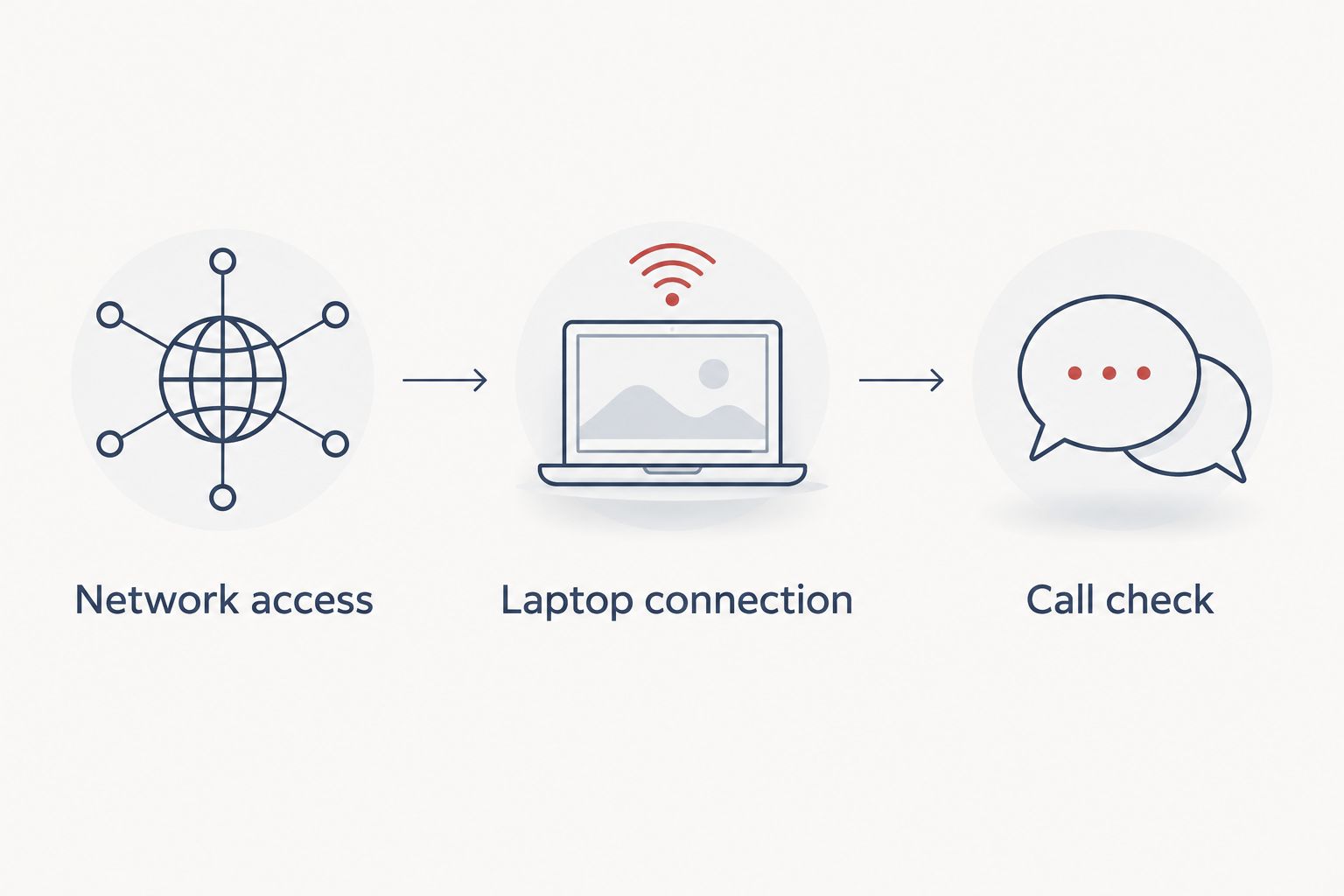
The workflow is network access, laptop connection, then call check. Keeping that order separates an account problem from a coverage problem and stops an application fault being mistaken for a booth fault.
What counts as a useful test record?
Write down what happened rather than describing the connection as bad. For example, distinguish between a network disconnect, a frozen picture, missing audio and a work application that refuses to open.
Also record whether other devices experienced the same issue. A problem affecting one laptop needs a different investigation from a problem affecting every device in the same booth. Neither result, on its own, identifies the underlying cause.
Reconnect when you return to the booth
For repeat visits, the adjacent workflow is automatic reconnection followed by a short functional check. This removes repeated network selection without treating yesterday's successful call as proof that today's connection is working.
Where your organisation permits it, enable Connect automatically for the approved network. When you return, confirm the network name and open your calling application before joining the meeting.
Best for: employees who regularly use the same booth with the same managed laptop. The advantage is less repeated setup; the limitation is that saved credentials and automatic reconnection do not resolve congestion, weak coverage or expired account access.
If you move between booths, check each location separately. A successful connection in one part of an office does not establish coverage elsewhere, even when the network name stays the same.
Troubleshooting
The network appears, but sign-in fails
Confirm the exact network name and required account with IT. Check whether the device needs enrolment or an updated connection profile; repeatedly entering a password will not resolve a missing profile.
If access has recently changed, ask IT to review the saved connection. Do not delete a managed profile unless instructed to do so.
Wi-Fi connects, but work resources do not open
Check whether you joined the guest network instead of the approved staff network. Complete any required browser sign-in, then confirm that your normal VPN connection is working.
Report whether public pages open while internal resources fail. That separates general connectivity from access to a particular service.
Calls work outside but break up inside
Repeat the comparison using the same device, network and application. Ask IT to assess wireless coverage at the working position with the door closed.
Do not add a personal extender or hotspot as the default fix. An additional wireless device needs IT approval and does not establish that the original network issue has been resolved.
Only one laptop has the problem
Compare the affected laptop with another approved device in the same position. Ask IT to review its wireless adapter, connection profile and managed updates.
If both devices fail in the same place, report that result too. It helps IT decide whether to investigate the device or the surrounding network first.
Calls fail everywhere, not just inside the booth
Check whether colleagues have the same problem outside the booth. Report the affected application, time and symptoms to IT.
Do not attribute an office-wide service problem to the booth. Keep the location comparison in the report so the investigation starts with the observed scope.
Customise your workflow
Turn the successful test into a short handover note for colleagues. Include the approved network name, required sign-in route, support contact and any application-specific checks—not shared passwords.
For Quell Workspaces office phone booths, keep network acceptance separate from the workspace specification. Confirm any connectivity feature for the exact product rather than assuming that a socket, wireless device or network service is included.
If your workflow includes a separately networked accessory, request its own setup instructions. A successful laptop connection does not connect another device automatically.
Ask IT whether an approved wired alternative is appropriate if wireless performance remains unsuitable. That is a network-design decision, not a reason to modify the booth or improvise a cable route.
FAQ
Do I connect an office phone booth to Wi-Fi or just my laptop?
For a laptop-based call, connect your laptop to the approved office Wi-Fi network. A separate network-enabled device needs its own instructions; do not assume the booth itself requires a connection.
Will office Wi-Fi work with the phone booth door closed?
You need to test Wi-Fi from your working position with the door closed. Compare the same device and application inside and outside the booth if the call breaks up.
Is 2.4 GHz or 5 GHz better for Wi-Fi inside a phone booth?
Neither band is automatically better in every booth location. The 2.4 GHz band generally reaches farther through obstacles, while 5 GHz offers more channel capacity; ask IT which approved connection to test.
Why does my laptop show Wi-Fi but fail to join a meeting?
A Wi-Fi connection does not guarantee access to the meeting service. Check network sign-in, the approved network, required VPN access and whether the application works outside the booth.
Should I put a Wi-Fi extender inside the office phone booth?
Ask IT to assess coverage before adding an extender. Any additional network device needs approval and must be considered as part of the office network rather than treated as an automatic fix.
Does a Quell Workspaces phone booth include Wi-Fi equipment?
Confirm connectivity equipment against the exact product specification before ordering. Do not assume that a booth includes a router, access point or internet service.
One last thing
Test the return visit, not just the first connection. Leave the booth, use your laptop normally, then return and repeat the call check. This verifies the routine your colleagues will actually follow rather than only a carefully prepared first session.
Keep the final handover practical: the right network, the required sign-in and the person to contact when the test fails. That is more useful than a screenshot showing full Wi-Fi bars.


