
27 October 2026 · Editorial Team
How to power and network an office pod
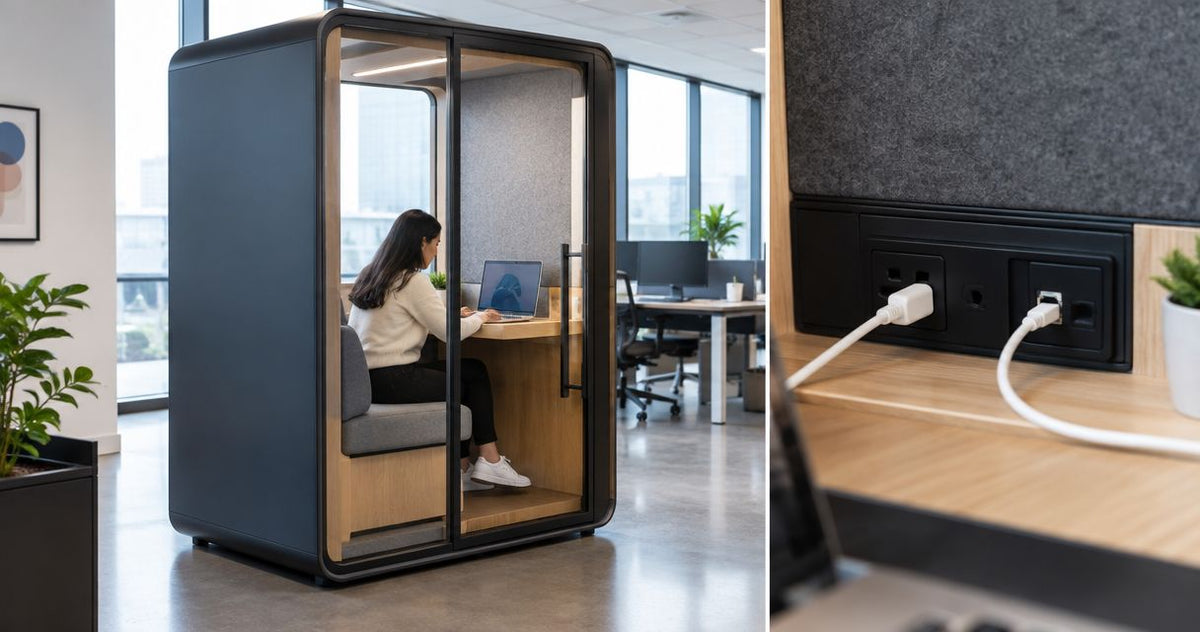
Instead of moving between desks to find a usable connection for calls, plan your office pod power and data connection around the equipment, network access and support each user needs. Agree the power requirements with the supplier and facilities team, then have IT configure and test the connection inside the pod before you use it for meetings.
- Plan a Quell Workspaces office pod power and data connection around actual call equipment, not assumptions about included connections.
- Wi-Fi suits mobile working; Ethernet suits a fixed connection where compatible equipment and an approved network port exist.
- Keep electrical work with the appointed facilities team; this guide covers planning, network configuration and user testing.
- Test a real call inside the pod before handing the space over to colleagues.
Why this matters
A pod creates a dedicated place to work, but the connection still needs its own plan. A laptop that connects at a nearby desk does not prove that calls will work as intended inside the pod.
Quell Workspaces office pods are best considered by workplace teams planning dedicated spaces for calls and meetings. Start with the intended activity, then match the equipment and connection to it. The office phone booth is a relevant commercial starting point for individual-call planning; confirm its current connection details with the supplier rather than treating the product category as a specification.
The practical benefit of this workflow is a clear handover between the supplier, facilities and IT. Its limitation is equally clear: a purchasing decision does not replace model-specific power information or an office network configuration.
Before you start
- Get the exact pod documentation. Ask the supplier to confirm the supplied power arrangement, connection points and any proposed data provision for the model you are considering. Give that information to your appointed facilities contact; do not infer it from photographs or another pod.
- Name the people who can approve the setup. You need a facilities contact for the power arrangements and an IT administrator for network access. Bring the laptop, headset, adapters and meeting application you expect people to use.
- Check the hidden access barrier. A network name appearing on a laptop does not mean that the device can use the required services. Ask IT whether company accounts, device registration or an approved network port are required before the test session.
This is a planning and IT handover guide, not electrical wiring or physical installation instructions. Keep the supplier's product instructions and your appointed team's responsibilities separate from the user checks below.
Power and equipment brief
Create a shared worksheet for the pod setup. The bold labels below are suggested worksheet fields, not controls in a supplier portal or a meeting application.
- Record the exact model under Pod model. Add the supplier's documentation under Supplier information, so everyone works from the same source.
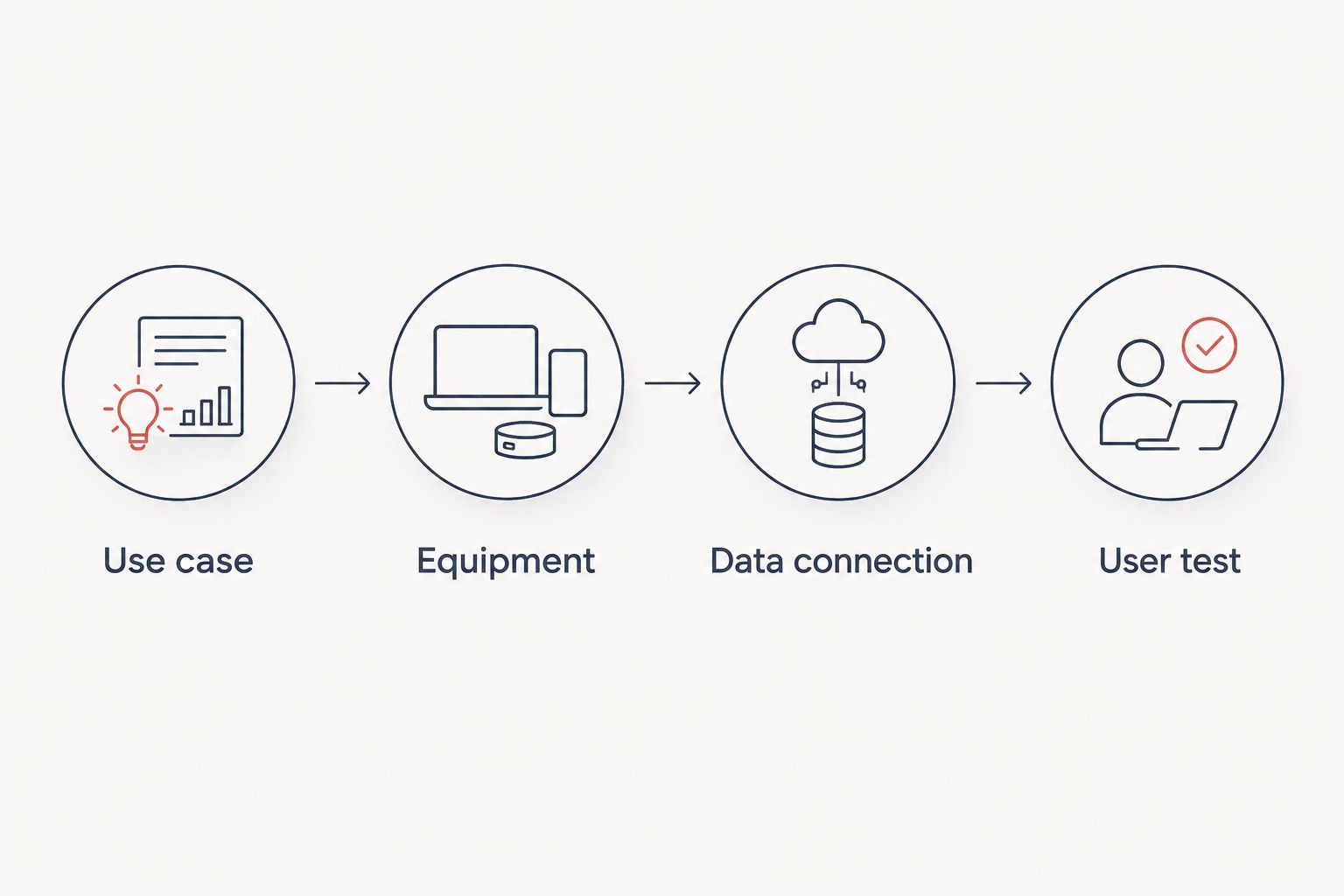
- Write the intended activities under Use case. Distinguish an individual laptop call from a meeting using shared equipment; those activities need different equipment decisions.
- List the devices under Equipment. Include the actual laptop, charger, headset and any proposed shared meeting equipment. Record accessories that users already need, rather than assuming a pod provides them.
- Send the equipment list and supplier information to facilities. Ask the appointed contact to confirm the power arrangements for that combination; leave connection methods and electrical work to that team.
- Record the responsible person and their confirmation under Facilities owner. Keep unresolved questions visible rather than turning assumptions into an approved setup.
Expected result: the supplier, facilities and IT can identify the same pod and equipment list. You have a named person responsible for confirming the power arrangements before the user test.
For Quell Workspaces, make this brief model-specific. Do not transfer connection details from a phone booth to a meeting room, or assume that an accessory is included because another product offers it.
Network connection plan
Choose the data connection from the working pattern and the office network, not from a preference for a particular cable. Wi-Fi and Ethernet both need access approval and testing on the equipment that people will actually use.
| Connection | Best for | Practical advantage | Limitation to resolve |
|---|---|---|---|
| Wi-Fi | People bringing their own approved work laptops | Users connect without a physical network cable | Coverage and access must be checked inside the pod |
| Ethernet | A fixed workstation or compatible shared meeting equipment | Provides a wired network connection | Requires a usable network port and compatible equipment |
Choose Wi-Fi for mobility; choose Ethernet for a fixed wired connection when the equipment and office network support it. Neither choice proves that the meeting application will work. Test the full activity after IT confirms access.
- Enter the selected approach under Data connection. If different equipment will use different connections, list each device separately.
- Ask IT to identify the approved wireless network or wired network port. Record that reference under Network reference, without placing passwords in the shared worksheet.
- Give IT the equipment list. Ask whether each device needs registration, account access or an adapter before the test.
- For Wi-Fi, have IT confirm the intended network and authentication method. For Ethernet, have IT confirm the port's network assignment and the device's connection method.
- Record the person responsible under IT owner. Add unresolved access questions under Open actions so the setup does not depend on an informal conversation.
Expected result: each device has a defined connection method and a named IT owner. Users know which approved network to use, while confidential credentials remain in the organisation's approved process.
A guest network is not automatically a substitute for the company network. Ask IT which network supports the required work activity, especially when users need internal services as well as internet access.
User test and handover
Run the test inside the pod, using the intended equipment and its normal working arrangement. A successful connection outside the pod is not the same test.
- Ask the appointed facilities contact to confirm that the agreed power arrangements are ready for use. Do not turn the user test into a task for altering the pod or its electrical connections.
- Connect the approved device through the method IT selected. Confirm that the device reaches the services needed for work, not just a public webpage.
- Open the actual meeting application and join a call with a colleague outside the pod. Check whether both participants can hear each other and whether the intended camera works.
- Share the material you normally present. Test screen sharing and access to any required work files, rather than stopping after the application opens.
- Ask another intended user to repeat the sign-in and call process. This distinguishes a repeatable workflow from a setup that works only for the organiser's account.
- Record the outcome under User test. Describe any failure precisely: the affected device, connection method, application and action that failed.
Expected result: a typical user can connect, join a call and use the required meeting functions. Any remaining issue has an owner and a clear description before the pod is handed over.
For a Quell Workspaces office pod, acceptance should describe the working activity rather than an assumed technical capability. A useful record says that the intended laptop completed the required call functions; it does not claim that every device or future application will behave identically.
Handover record
Keep a short operational record containing:
- The pod model and equipment used during the test.
- The approved connection method and network reference.
- The facilities and IT contacts responsible for support.
- The meeting functions checked and the result.
- Any unresolved action, with its named owner.
Do not include passwords or personal account details. The handover record should help colleagues repeat the process without exposing credentials.
Shared meeting equipment workflow
Use a separate equipment entry when the pod will host shared meeting equipment rather than only personal laptops. The key difference is ownership: a fixed device needs an ongoing support contact, not just someone who helped with the first call.
- Define Equipment owner before configuration. Name the team responsible for the shared device, accessories and account arrangements.
- Have IT confirm the connection and sign-in approach. Do not use an individual's account as the default without approval from the team responsible for access.
- Test the shared equipment with the intended meeting application. Include joining, speaking, listening and presenting, using the process that ordinary users will follow.
- Ask a colleague who did not configure the equipment to start a meeting. Record where they needed help and simplify the written instructions.
- Add the shared setup to the handover record, keeping its network and account information distinct from the personal-laptop workflow.
Expected result: users can start the meeting without relying on the person who configured it. IT knows which equipment requires support, and facilities retains responsibility for the agreed power arrangements.
The advantage of shared equipment is a consistent starting point for meetings. The trade-off is ongoing administration: someone must own access, updates and support. Personal laptops keep that responsibility with existing device owners but require each user to connect their own equipment.
Troubleshooting
Wi-Fi works at the desk but not inside the pod
Repeat the test inside the pod with the same approved laptop and network. Give IT the precise location and observed failure, distinguishing a network that is not visible from one that rejects sign-in or drops during use.
Do not assume the pod itself identifies the cause. IT should investigate the wireless connection in the actual working location before recommending a change.
Ethernet is connected but work services do not open
Ask IT to check the network port, device connection and access assignment. A physical cable connection does not confirm that the port is active or that the device has the access it needs.
If an adapter is involved, include its details in the support request. Avoid changing network settings at random; that makes the original fault harder to reproduce.
The application opens but the call does not work properly
Separate the symptoms. Report whether the problem affects joining, sound, video or screen sharing, and whether it occurs on the approved connection used in the test.
Have IT check network access alongside the application's selected microphone, speaker and camera. Do not treat every meeting fault as a bandwidth problem.
The organiser can connect but colleagues cannot
Compare the approved network, device registration and account permissions with IT. The successful organiser test establishes only that particular device and account combination.
Repeat the handover test with another intended user. Update the instructions only after IT confirms the correct access process.
Equipment cannot be used as planned
Stop the user test and return the equipment list to the appointed facilities contact and supplier. Ask them to resolve the mismatch between the documented arrangement and the intended equipment.
Do not improvise changes to the pod or its connections. Keep the issue as an open action until the responsible team confirms the arrangement.
Customise your workflow
Once the initial connection works, extend the handover to the ways people will actually use the space. Add separate entries for personal laptops and shared equipment when both are planned, and identify who supports each arrangement.
Recheck the workflow when the equipment, network configuration or pod location changes. Repeat the affected user checks instead of treating the original result as permanent approval for every later change.
For Quell Workspaces, the next useful conversation is a model-specific brief covering the intended devices and connection approach. Ask for confirmation of the required arrangement before treating it as part of the purchase. A product name alone does not establish its supplied power or data features.
FAQ
What does an office pod power and data connection need?
An office pod power and data connection needs confirmed model-specific power information and an approved network approach for the intended equipment. Give the supplier's documentation and equipment list to facilities and IT, then test the actual work activity inside the pod.
Is Wi-Fi or Ethernet better for calls inside an office pod?
Wi-Fi suits mobile laptop use, while Ethernet suits a fixed wired connection where compatible equipment and an approved network port exist. Test the selected method inside the pod with the actual meeting application before choosing it for everyday use.
Can I assume a Quell Workspaces pod includes a data connection?
Do not assume a Quell Workspaces pod includes a particular data connection. Ask the supplier to confirm the provision for the exact model and have IT check it against the intended equipment and office network.
Who should arrange the power supply for an office pod?
Your appointed facilities contact should coordinate the power arrangements using the supplier's model-specific information. Keep electrical work separate from user-level network and meeting tests.
How do I test the connection before colleagues use the pod?
Test the intended equipment inside the pod on the approved network, then complete a real call and screen-sharing task. Ask another intended user to repeat the process so the result does not depend on the organiser's account.
What should I check after moving a pod or changing its equipment?
Recheck the affected power arrangements with facilities and repeat the network and meeting tests with IT. Update the handover record so it describes the current location, equipment and connection method.
One last thing
The strongest final check is a colleague starting a call without your help. If the workflow depends on your account, your adapter or instructions that exist only in your head, the handover is unfinished.
Record what that colleague needed. Resolve it with the responsible team, then repeat the same task before opening the space for routine use.


