
20 October 2026 · Editorial Team
How to write an office pod brief for your fit-out contractor

Instead of repeatedly explaining pod requirements in emails, write an office pod fit-out brief that brings the use case, product reference, responsibilities and decisions into one controlled document. Give your fit-out contractor a clear basis for coordination without treating the brief as technical installation instructions.
- An office pod fit-out brief should separate workplace requirements, product facts and contractor responsibilities.
- Quell Workspaces suits workplace teams sourcing acoustic office pods, phone booths and private meeting rooms directly.
- Reference the exact product, record unresolved decisions and name an owner for every action.
- Update the brief whenever the selected product, intended use or project scope changes.
Why this matters
A contractor cannot resolve an unclear workplace requirement by choosing a product alone. Your brief needs to explain what people will do inside the pod, which decisions are settled and which questions still need answers.
For example, if your requirement concerns individual calls, reference the Office Phone Booth Folio rather than attaching an unlabelled product photograph. Keep the product reference separate from your own requirements so nobody mistakes a requested feature for an included feature.
Quell Workspaces is best for workplace teams sourcing acoustic office pods, phone booths and private meeting rooms directly. The office pod brief still needs project-specific decisions from your workplace team and contractor; a product page does not define those responsibilities.
The useful output is not a lengthy description of an ideal office. It is a document that lets each person identify what they must confirm before the project proceeds.
Before you start
- Gather the working documents: your current workplace layout, the project schedule and the exact product references under consideration. Label each document so readers can identify its status.
- Bring in the decision-makers: identify the workplace contact, fit-out contractor, purchasing contact and relevant IT contact. Give each person access to the same brief and supporting documents.
- Separate requirements from product facts: the non-obvious trap is writing a desired feature as though the selected pod includes it. Mark every item as a requirement, a confirmed product detail or an open question.
Do not copy specifications from a similar-looking booth. Keep supplier-provided information attached to the exact product reference, and leave unresolved details visibly unresolved.
Workplace requirements
Start your office pod fit-out brief with the activity the space must support. This gives the contractor a reason for the product choice and gives your workplace team something concrete to approve.
Define the use case
- Add a field labelled Primary use. Describe the activity in plain language: individual video calls, private conversations or small-group meetings.
- Add Intended users. Name the teams or roles that need the space, rather than writing only that it is for everyone.
- Add Expected occupancy. Record the number of people your requirement involves and distinguish that request from the selected product's stated configuration.
- Add Working pattern. Explain whether people need the space for scheduled sessions, spontaneous calls or uninterrupted work.
- Add Success conditions. Describe observable outcomes, such as staff finding the booked space and using their intended work equipment there.
These are labels for your own document, not settings in a particular software platform. Use them in a shared document or project worksheet, whichever your contractor already reads.
Expected result: the contractor can describe the intended activity without guessing from the product name or office layout.
Choose a reference that matches the activity
Use product references to make the conversation specific. Do not treat a short product title as a substitute for the full product information.
| Product reference | Best for briefing | Useful starting point | Limitation to record |
|---|---|---|---|
| Office Phone Booth Folio | An individual-call requirement | A named phone booth gives the contractor a specific reference | The reference does not establish your equipment needs or project responsibilities |
| Quell+ - 2 Person Pod | A conversation involving 2 people | The supplied product title identifies a 2-person configuration | The title alone does not define the working arrangement your team needs |
| Folio Office Pod - 2-4 Person | A meeting requirement involving 2–4 people | The supplied title gives a stated occupancy range to discuss | The title does not confirm every intended furniture or equipment arrangement |
These references represent different briefing options, not a ranking. Choose the reference around the activity, then confirm the details against that exact product.
If your requirement is a conversation between 2 people, say so explicitly. If it includes meetings involving 4 people, keep that requirement visible rather than assuming any meeting pod is interchangeable.
Product reference and project scope
The next part of the brief joins the workplace requirement to the proposed purchase. Keep the boundary between confirmed information and requests clear throughout.
Build the product record
- Create Selected product and copy the exact product name. If no selection is approved, write that the reference is provisional.
- Add Source document. Record the product page or supplier document used, along with its revision or date where provided.
- Create Confirmed details. Include only information supplied for that exact product; do not fill gaps from another model.
- Create Requested options. List project requests separately and assign someone to obtain confirmation.
- Create Open questions. Give each unresolved question an owner and a required decision point.
A useful open question concerns a real decision: whether the proposed furniture arrangement is included, for example. A vague instruction to confirm everything leaves nobody with a defined task.
Expected result: readers can distinguish what the supplier has stated from what your team wants and what remains undecided.
Set the scope boundary
Add a short Scope boundary section describing what the contractor is coordinating and what requires separate confirmation. Keep this at a project-management level; do not use the brief to prescribe technical installation methods.
Use the following distinction:
- Workplace team: defines the activity, intended users and acceptance conditions.
- Supplier: confirms information about the selected product and proposed order.
- Fit-out contractor: confirms the coordination scope assigned within the wider project.
- IT contact: confirms the workplace requirements for equipment and connectivity.
These are proposed responsibility categories, not statements about any company's contracted service. Amend them to match the actual agreements.
For Quell Workspaces office pods, the brief should identify the exact product being discussed. It should not turn a general brand description into a promise about an individual configuration.
Expected result: the brief identifies who must answer each question without expanding anyone's contracted scope by implication.
Responsibilities and issue control
A brief becomes useful when decisions have owners and everyone knows which version to read. Keep the working process simple enough that it survives the next round of project emails.
Assign decisions and dependencies
- Create Decision owner beside every unresolved requirement. Name the person or role authorised to settle it.
- Add Required by. Use the real project decision point rather than inventing a supplier timescale.
- Add Dependency. Explain what cannot proceed until the decision is settled, such as purchasing or approval of the workplace layout.
- Add Decision record. Capture the answer and its source in the brief, rather than leaving it only in an email chain.
- Review the entries with the contractor before issuing the document for coordination.
Keep dates tied to the actual project programme. A requested project date is not a confirmed supplier commitment, so label the distinction clearly.
Expected result: each open item has a route to resolution, and the contractor can identify which decisions affect the project sequence.
Issue a controlled version
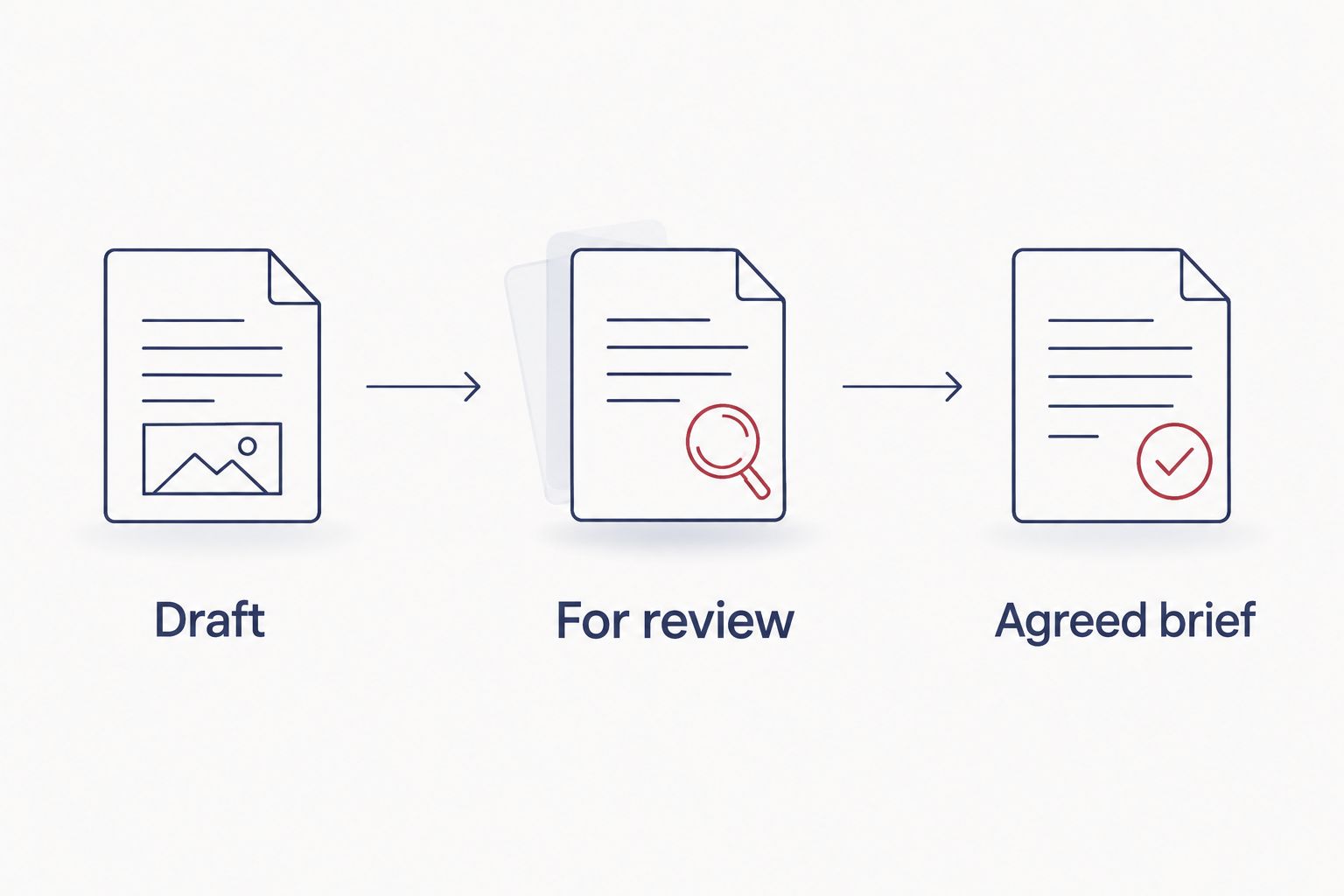
Use a simple status sequence: Draft, For review, then Agreed brief. These are document labels you create, not claims that a project platform supplies those controls.
Give the file a version identifier and nominate a document owner. When you issue a replacement, state which earlier version it replaces and summarise the changed decisions.
Keep the working document in the agreed shared location. Send a reference to that location when possible, rather than distributing separate editable copies that develop different answers.
Expected result: the workplace team and contractor can identify the current brief, its status and the person responsible for maintaining it.
Update the brief whenever the requirement changes
A second workflow handles changes after the original brief has been agreed. Use it when the product reference, intended activity or project responsibilities change.
- Record the request under Change requested. Describe what is different without overwriting the previous decision first.
- Add Reason for change. Explain the workplace requirement behind it.
- Identify Affected decisions. Review the product reference, scope boundary, equipment requirements and project programme.
- Ask the relevant owners to confirm the revised position. Do not assume the original agreement covers a different configuration.
- Update the brief and issue the replacement version with a short change summary.
For example, changing from individual calls to small-group meetings is a use-case change, not just a different product photograph. It requires another review of the selected reference and the decisions attached to it.
Expected result: the contractor receives a traceable change rather than an isolated instruction that conflicts with the agreed brief.
Troubleshooting
The contractor keeps asking the same questions
Fix the brief, not the email wording. Check whether the repeated question has an answer, an owner and a source in the current document. If it does not, add those fields and resolve the underlying decision.
Different people are using different product references
Remove superseded references from the active product record and identify the current selection. Preserve the earlier decision in the change history, but do not leave competing selections presented as equally current.
A requested feature is treated as included
Move the feature into Requested options and record who must confirm it. Only transfer it to Confirmed details when you have supporting information for the exact selected product.
Nobody knows who should answer an open question
Replace general ownership such as the project team with a named role or person. Ask that owner to obtain input from others; do not assign the same unresolved item to an undefined group.
The brief has become a technical instruction sheet
Move technical instructions out of the workplace requirements document and refer them to the responsible project specialists. Keep the brief focused on intended use, confirmed product information, scope and decisions.
Customise your workflow
Expand the brief around how your workplace will use the space after the project. Add Booking approach, User information and Operational owner if those decisions belong within your scope.
For scheduled meetings, describe who owns the booking process. For spontaneous calls, describe how staff identify whether the space is in use. These are operational choices; do not imply the selected product includes a booking or access system.
Add a short handover checklist based on the agreed requirements. Check that the selected product reference, final decisions and workplace instructions are recorded together. Do not replace project-specific confirmation with a generic checklist.
Quell Workspaces can be the named product source in your brief, while your own document remains the source for workplace requirements. Keeping those roles separate makes future changes easier to review.
FAQ
What should an office pod fit-out brief include?
An office pod fit-out brief should include the intended activity, product reference, confirmed details, scope boundary, decision owners and open questions. Keep requested features separate from supplier-confirmed information.
Who should write the brief for the fit-out contractor?
The workplace team should define the requirements and nominate a document owner. The contractor, supplier and relevant project contacts should review the sections that need their input.
Can I brief a contractor before choosing the pod?
Yes, you can issue a requirements brief before choosing the pod. Mark product references as provisional and identify who will approve the final selection.
Should I copy specifications from a similar office pod?
No, use information supplied for the exact product under consideration. A similar name or appearance does not establish that the same details apply.
How do I handle a change after the brief is agreed?
Record the requested change, identify affected decisions and obtain confirmation from the relevant owners. Issue a replacement version that states what changed and which earlier brief it replaces.
Does the office pod brief replace technical installation instructions?
No, the brief records workplace requirements and project decisions, not technical installation methods. Keep technical instructions with the responsible project specialists and their supporting documentation.
One last thing
A blank field is clearer than an invented answer, but an owned open question is better than either. Before sending the brief, review every unresolved item and give it an owner and a decision point.
Keep your Quell Workspaces product reference attached to the current brief. The contractor should never have to infer the intended model from an old presentation or a forwarded photograph.


