
20 October 2026 · Editorial Team
Meeting pod to Teams-ready video calls: complete workflow

Instead of selecting cameras and untangling audio at the start of every meeting, set up a repeatable laptop-led workflow so your meeting pod is ready for Microsoft Teams video calls. Choose one audio endpoint, check the view from every seat and test screen sharing before the first scheduled call.
- For meeting pod Microsoft Teams video calls, start with a laptop-led workflow and one active audio endpoint.
- Quell Workspaces supplies meeting pods; confirm video equipment separately rather than assuming the enclosure includes it.
- Test Microsoft Teams audio, camera framing and screen sharing from the seats people will actually use.
- Use a dedicated room workflow only when IT can support the account, equipment and ongoing administration.
Why this matters
A meeting pod and a video-call system solve different problems. The pod provides the meeting space; the camera, microphone, speakers, network connection and Microsoft Teams settings determine what remote participants receive.
Quell Workspaces meeting pods are best for workplace teams that need a separate space for calls and small meetings. The enclosure still needs a defined video-call workflow. Do not treat a product name or an acoustic description as confirmation that conferencing equipment is included.
If you are planning around the Folio Office Pod - 2-4 Person, confirm the equipment supplied with your chosen configuration before deciding what your team must provide. Keep the pod specification and the conferencing equipment list separate so neither gets mistaken for the other.
Before you start
- Accounts and access: Have a working Microsoft Teams account, the desktop app and permission to use your chosen camera and microphone. Ask IT to confirm external-meeting access if clients or suppliers will host calls.
- Equipment and materials: Bring the laptop, any external conferencing equipment, a representative presentation and a colleague who can join remotely. Check the actual supplied equipment list for your Quell Workspaces meeting pod; do not assume cameras, displays or conferencing software are included.
- The easily missed gotcha: Several laptops joining with their microphones and speakers active in the same pod can create echo or feedback. Decide which device handles room audio before anyone joins, and disable both microphone and speaker audio on companion devices.
Choose your call workflow
Start with the laptop-led workflow for a pod used by people bringing their own computers. It keeps the meeting account with the organiser and lets you validate the basic call experience before considering a managed room system.
A dedicated room workflow is a separate project, not a setting that turns a normal laptop into a room system. Ask IT to confirm the account, equipment and administration requirements before selecting that route.
| Workflow | Best for | Advantage | Limitation |
|---|---|---|---|
| Laptop-led Microsoft Teams call | Teams bringing their own laptops into a shared pod | The organiser joins through their existing account and selects the local devices | Each user must check device selection and connections |
| Dedicated Microsoft Teams Rooms setup | Shared meeting spaces managed by an IT team | The room has its own managed meeting workflow | Requires suitable room equipment, account configuration and ongoing administration |
Neither workflow removes the need to check camera coverage and microphone pickup. Choose the operating model first, then verify the complete setup from a remote participant's perspective.
Laptop and peripheral configuration
Connect the equipment
- Connect the camera and audio equipment you intend to use for the call. If you are using the laptop's built-in devices, leave unrelated peripherals disconnected during the first check.
- Open the Microsoft Teams desktop app and sign in with the account you will use for meetings.
- Open Settings and more, then Settings, then Devices.
- Under Speaker, select the device that should play the remote participants' voices. Under Microphone, select the device that should capture people inside the pod.
- Under Camera, select the camera you intend to use and inspect the preview.
Expected result: Microsoft Teams shows the intended camera view and the selected microphone and speaker. Write down the actual device names so the next user can recognise them rather than guess.
Check the account and permissions
If the camera or microphone does not appear, check the computer's operating-system permissions and your organisation's device restrictions before changing other settings. Close another application that is using the camera, then check Microsoft Teams again.
Use the same connection route during testing that staff will use during meetings. A successful test with equipment connected directly to a laptop does not verify a different connection through a dock.
Audio and camera checks
Check speech from every seat
- In Settings, open Devices and select Make a test call if that option is available in your account and app.
- Follow the spoken prompts and listen to the recording. If the option is absent, arrange a call with a colleague outside the pod instead.
- Complete a suggested 30-second voice test from each intended speaking position. Use ordinary conversation rather than speaking directly into the microphone from an unusually close position.
- Ask the remote colleague whether each speaker is intelligible. Check the sound you receive as well as the sound you send.
Expected result: People in the intended seats can hear the remote participant, and the remote participant can understand each speaker without repeated requests to speak louder.
Check the camera view
Look at the preview while everyone sits where they would during a normal meeting. Check faces at the edges of the image, not just the person nearest the laptop.
Adjust the camera position and available lighting until faces are visible without a bright window dominating the picture. Judge the view from the remote participant's screen, because a good-looking pod interior is not the same as a useful meeting image.
Meeting entry and screen sharing
Join with one audio endpoint
- Open the scheduled Microsoft Teams meeting and inspect the pre-join camera preview.
- Select Computer audio on the laptop responsible for the pod's microphone and speakers.
- Check the selected audio devices before choosing Join now. Do not assume that yesterday's selection remains correct after equipment changes.
- If colleagues join on additional laptops, have them join without computer audio. Muting only their microphones still leaves their speakers able to play the meeting back into the room.
Expected result: The pod contributes one active audio path to the meeting. Additional laptops can support individual participation without introducing competing microphones and speakers.
Share a real working document
- Open the application or document you expect to present, removing unrelated material from view.
- In the meeting controls, select Share. Choose Window for a specific application or Screen when the task genuinely requires the whole desktop.
- Run a suggested 2-minute sharing check using representative slides, a spreadsheet or another normal working document. Ask the remote colleague to confirm that the content is readable.
- Select Stop sharing and confirm that the meeting returns to the expected view.
Expected result: You can share the intended material, change what is visible and stop sharing without changing the pod's audio setup.
End-to-end check and handover
Rehearse the complete meeting
- Start a suggested 5-minute rehearsal using the equipment, account and seating arrangement intended for everyday calls. These durations are practical test tasks, not performance standards.
- Ask each person inside the pod to speak, then ask the remote colleague to respond. Include a screen-sharing task and a return to discussion.
- Leave the meeting, disconnect the laptop and repeat the connection process with the next intended user.
- Record the working device names, connection route and meeting-entry sequence in a short internal guide.
Expected result: Another user can repeat the workflow without relying on the person who configured it. The guide describes the actual equipment rather than generic instructions that leave device choices unresolved.
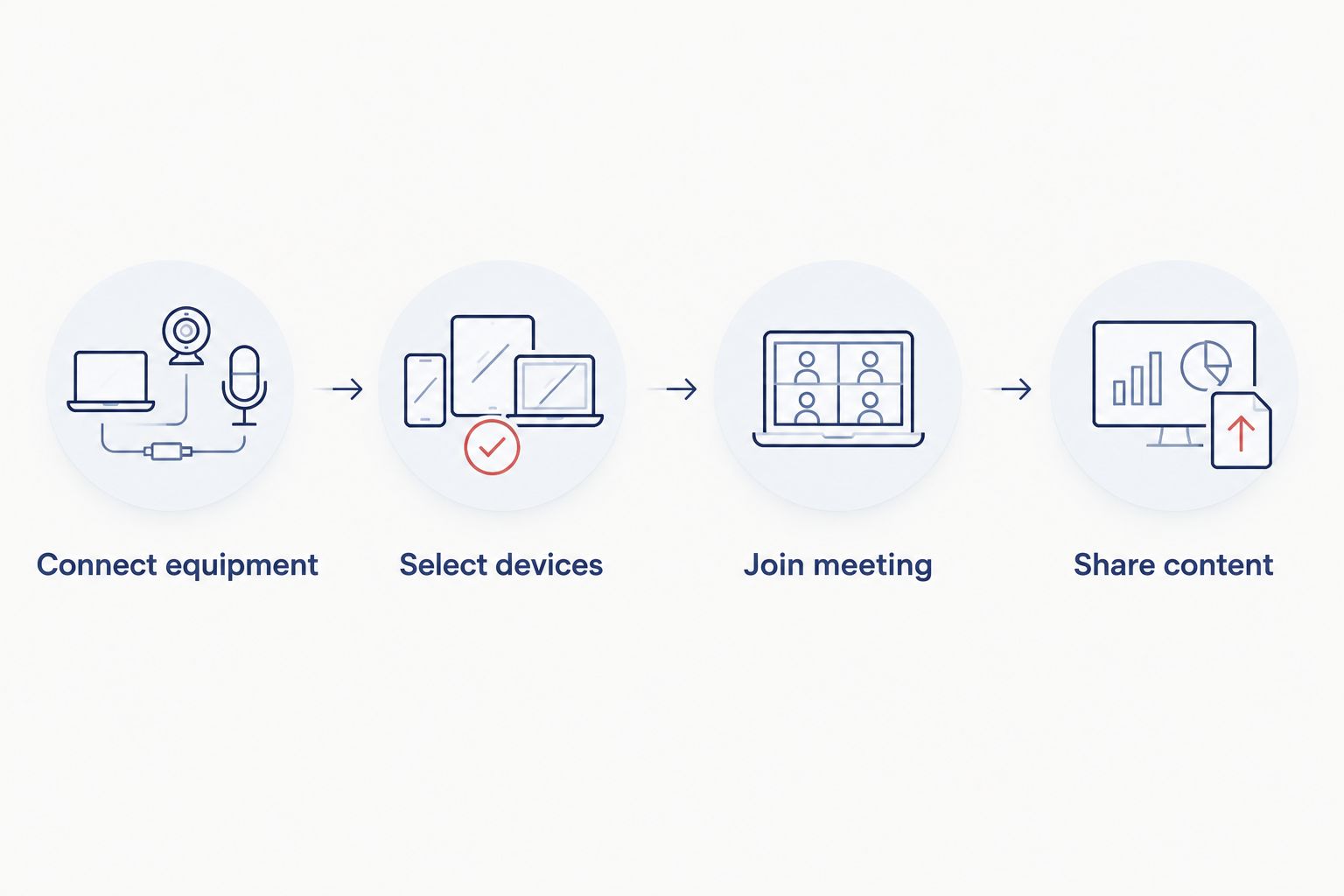
The handover should follow the same sequence as the rehearsal: connect equipment, select devices, join the meeting and share content. Keep account credentials out of the guide; users should sign in through the organisation's normal process.
Variant: several colleagues join from the same pod
For a hybrid workshop, several people inside the pod can join the same Microsoft Teams meeting on separate laptops. Keep one device responsible for room audio, while companion devices support chat, individual screen sharing or access to meeting materials.
- Choose the laptop and audio equipment that will handle speech for the pod. Confirm that the microphone can capture the intended speaking positions through a remote check.
- Join that laptop using Computer audio and verify the selected microphone and speaker.
- Join companion laptops without computer audio. Keep their microphones disabled and ensure they are not playing meeting sound.
- Share content from whichever laptop holds the relevant material. The presenting laptop does not need to become the room's audio device.
- Recheck the arrangement when somebody reconnects a device or changes seats.
Expected result: Remote participants receive one room audio feed while local colleagues retain access to their own documents and meeting controls.
This variant adds flexibility but also creates more opportunities for accidental audio duplication. For a straightforward presentation, keep the setup simpler and use only the organiser's laptop unless other devices serve a clear purpose.
Troubleshooting
Remote participants hear echo
Check for another laptop, phone or tablet in the pod playing the meeting through its speakers. Disable computer audio on companion devices, not just their microphones, then repeat the conversation check.
If echo remains with one active endpoint, verify that Microsoft Teams is using the intended microphone and speaker combination. Remove unintended audio devices from the workflow before adjusting unrelated settings.
The camera or microphone is missing
Check the physical connection and whether the operating system recognises the device. Then review application permissions and close other software using the camera.
Return to Settings, Devices and reselect the equipment. If organisational restrictions prevent access, ask IT to resolve those restrictions rather than repeatedly reconnecting the device.
Speech is clear near the laptop but weak elsewhere
Repeat the remote voice check from the affected seat. Confirm that Microsoft Teams has not selected the laptop microphone instead of the intended external microphone.
If the correct microphone still does not capture the planned seating arrangement clearly, review the equipment choice with IT. A larger enclosure alone does not establish that a particular microphone covers every seat.
Video freezes or shared content stalls
Check the laptop's network connection from inside the pod under normal working conditions. Compare the problem during a call without screen sharing and then while sharing the representative document.
Ask IT to investigate the network or device issue before replacing the camera. Separating those checks helps avoid changing equipment that is not responsible for the fault.
The shared screen shows the wrong material
Select Stop sharing, open the intended application and use Share again. Choose Window when you only need one application visible.
Check the remote view after switching. The presenter's own desktop is not proof that remote participants are receiving the intended window.
Customise your workflow
Build the next improvement around a recurring meeting task, not a longer equipment list. Client presentations need readable shared content; collaborative discussions need clear speech from each seat; individual calls need a repeatable way to connect a laptop and start promptly.
For a larger local group, Quell+ - 4 Person Meeting Booth is a relevant enclosure to review. Confirm the chosen configuration separately from the conferencing equipment, and repeat the audio and camera checks for the seating arrangement you intend to use.
A Quell Workspaces meeting pod gives the workflow a defined location, but the team still needs an owner for its shared equipment and instructions. Assign responsibility for keeping the device list current and checking reported faults.
Update the handover whenever equipment changes. A short guide that matches the actual setup is more useful than detailed instructions for a camera or connection route nobody uses any longer.
FAQ
How do I set up a meeting pod for Microsoft Teams video calls?
Connect the intended camera and audio equipment, select those devices in Microsoft Teams and test a call with someone outside the pod. Check speech from every intended seat and share a representative working document before using the setup for scheduled meetings.
Does an acoustic meeting pod include Microsoft Teams equipment?
Do not assume that an acoustic meeting pod includes Microsoft Teams equipment. Confirm the supplied configuration and list the camera, microphone, speakers, display and computer separately where they are required.
Can several people join Teams from laptops in the same pod?
Yes, but keep one device responsible for the pod's audio. Join companion laptops without computer audio so their microphones and speakers do not create competing audio paths.
Do I need Microsoft Teams Rooms for a meeting pod?
No, a laptop-led Microsoft Teams call is a separate workflow that does not require a dedicated Teams Rooms setup. Consider a managed room system when IT can support the required equipment, account configuration and administration.
Why does my Teams call echo inside the meeting pod?
Multiple active microphones and speakers in the same space are a common cause of echo. Disable computer audio on companion devices, then check that the remaining laptop uses the intended microphone and speaker.
How do I check whether everyone in the pod can be heard?
Ask a colleague outside the pod to join a call and listen while each local participant speaks from their intended seat. Check the selected microphone before changing equipment, and repeat the test after changing the seating arrangement.
One last thing
The most revealing handover test is a laptop swap. A setup that works for its organiser still needs to work when another colleague connects their own computer, selects devices and joins a meeting.
Make that swap part of the rehearsal rather than discovering the problem during a client call. It tests the instructions as well as the equipment, and exposes assumptions about saved settings that a single-user demonstration leaves hidden.


