
22 October 2026 · Editorial Team
Meeting pod to Zoom-ready video calls: complete 2026 workflow

A meeting pod only earns its floor space once the video call inside it sounds and looks better than the open desk it replaced. This walkthrough turns any Quell Workspaces pod into a working meeting pod video conferencing setup — power, network, camera, microphone and screen share, in that order — so the next person who books it just sits down and joins.
- A meeting pod video conferencing setup needs a wired network drop, a camera at eye level and a completed audio test before the first call.
- Match pod size to call size: a single-person phone booth suits one-to-one calls, a 3-4 person booth suits team standups.
- Acoustic panels and glass doors weaken Wi-Fi signal enough to drop video quality mid-call — cable in or move an access point closer.
- Ventilation fans and mics aimed at glass, not the table, cause most of the echo and hum complaints on pod calls.
Why this matters
A meeting pod solves the acoustic half of a video call problem — it stops the call leaking into the open office and the office leaking into the call. It does not automatically solve the technical half. A pod with no wired network point, a camera angled down from a shelf, or a mic pointed at a glass door will still deliver a call that looks and sounds worse than a laptop at a desk.
Getting the workflow right once, on the Quell Workspaces pod itself, means every booking after that starts on time instead of losing the first five minutes to cable-hunting and audio checks.
Before you start
- Zoom desktop app installed and signed in on whichever laptop or mini PC will live permanently inside the pod — swapping devices between meetings is the single biggest cause of a broken setup.
- A power source inside or immediately next to the pod for the display, camera and any mic hub, plus either an Ethernet point or a strong Wi-Fi signal reaching the pod's exact location.
- The gotcha: acoustic panels and glass doors can noticeably weaken a Wi-Fi signal. Check signal strength from inside the pod with a phone before committing to a wireless-only setup — don't find out mid-call.
Pick a pod sized for the call
A meeting pod video conferencing setup only works if the pod matches how many people actually need to be on camera. A four-person booth booked for a solo call wastes the space; a two-person booth crammed with four people pushes half the group out of frame.
| Pod | Typical use | Verdict |
|---|---|---|
| Office phone booth | Solo, one-to-one Zoom calls | Buy for individual calls |
| Quell+ 2 Person Pod | Paired check-ins, manager 1:1s | Buy for two-person calls |
| 4-person meeting booth | Team standups, small client calls | Buy for regular team calls |
| Folio Office Pod (2-4 person) | Flexible team size, occasional use | Hold if call sizes vary week to week |
The Quell Workspaces 4-person meeting booth is the strongest pick for daily team standups; a single-occupant phone booth is the better fit for anyone spending most of their day on one-to-one calls.
Set up power and network inside the pod
- Route a power strip to the pod's sockets and plug in the display, camera and any mic hub before anything else — a video conferencing setup with an unpowered camera is not a setup.
- Connect an Ethernet cable to the pod's network point if one exists. If it doesn't, place a Wi-Fi access point just outside the pod door rather than relying on a router two rooms away.
- Test connection speed from inside the pod with a phone or laptop before wiring anything in permanently.
Expected result: the pod holds a stable connection without video quality dropping mid-call.
Configure your camera and framing
- Position the camera at seated eye level — level with a person sitting at the table, not angled down from a shelf or the top of the display.
- In Zoom, click the arrow next to the video icon and open Video Settings to confirm the pod's camera, not a built-in laptop camera, is the active source.
- Frame the shot so the table edge sits in the lower third of the picture, leaving headroom above the group.
Expected result: everyone seated is inside the frame without leaning toward the camera.
Set your microphone and speaker levels
- Click the arrow next to the microphone icon and open Audio Settings.
- Run Test Speaker & Microphone and speak at normal meeting volume from the seat furthest from the mic.
- Turn on Suppress Background Noise at High for pods near open-plan noise, and point the mic toward the seated group rather than toward a glass panel or the ventilation grille.
Expected result: the far end confirms voices sound even and no background hum from the pod is audible.
Test screen sharing and lock in the layout
- Start a test meeting and click Share Screen to confirm the shared laptop or a second display mirrors correctly.
- Leave the configured laptop or mini PC permanently in the pod instead of swapping devices between meetings, so the setup never needs repeating.
Expected result: the next person who books the pod joins a call without touching a single setting.
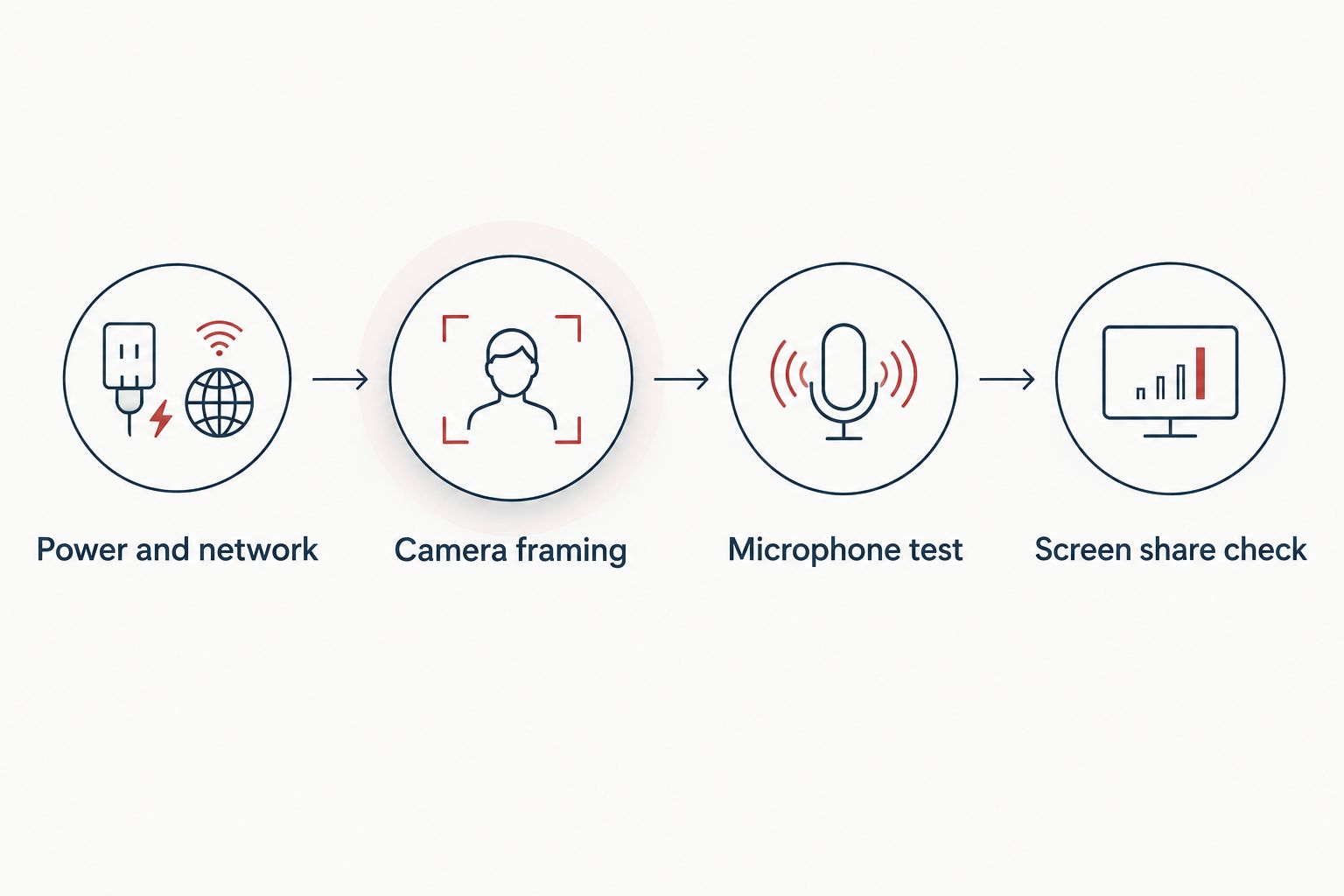
Set up a solo pod for one-to-one Zoom calls
A single-person booth doesn't need the same kit as a team booth. Skip the table-mounted camera and screen-share test above; a headset or a webcam clipped to the laptop lid is enough for a solo call.
- Swap the meeting camera bar for a headset, or a compact webcam clipped to the laptop screen.
- Skip the screen-share test — solo calls run straight from the laptop without a second display.
Expected result: one person can sit down in an office phone booth and join a call in under a minute, without any of the multi-camera setup a team booth needs.
Troubleshooting
- Echo on the call: the mic is usually aimed at a glass panel or the ventilation grille, not the table. Reposition it toward the seated group.
- Video quality drops mid-call: the pod's acoustic panels or glass door are weakening the Wi-Fi signal. Switch to a wired Ethernet connection or move the access point closer.
- Far end can't hear clearly: run Test Speaker & Microphone again with the ventilation fan running — if hum shows up on the test, move the mic away from the vent rather than adjusting fan settings.
- Screen share won't start: confirm the correct display is selected under Video Settings before clicking Share Screen — a second monitor left disconnected is the usual cause.
- Camera cuts out between meetings: the laptop was carried out of the pod and not returned. Leave a dedicated device wired inside pods used daily for calls.
If the far end can hear the ventilation fan, the mic is aimed at the vent, not at the table.
“If the far end can hear the ventilation fan, the mic is aimed at the vent, not at the table.”
Customise the workflow for hybrid teams
Once a single pod runs a reliable meeting pod video conferencing setup, the same steps scale to a whole floor of pods. Teams running daily hybrid standups with more than four people on-site tend to move up to a 6-person meeting booth rather than squeezing extra chairs into a smaller pod.
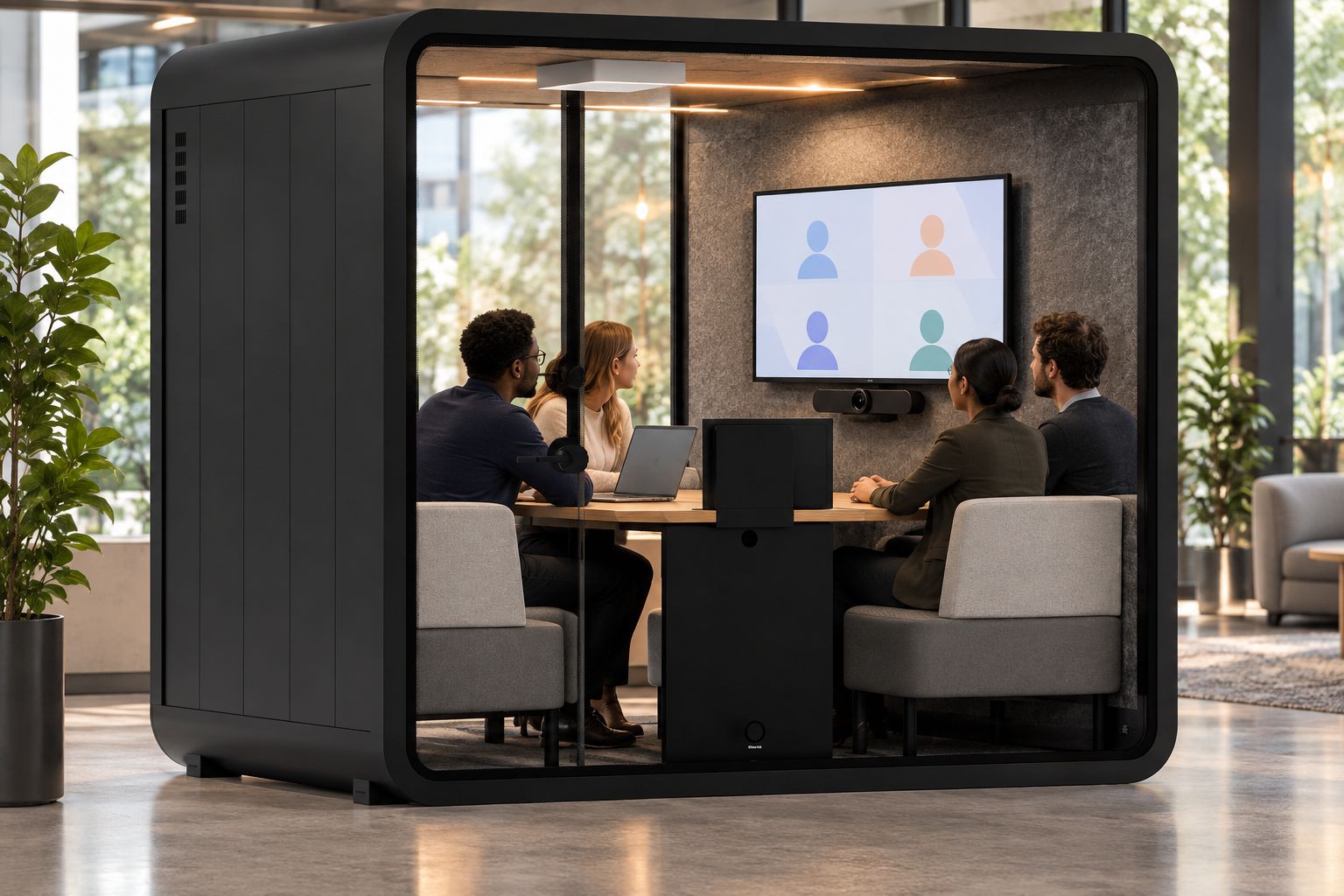
Standardise the same power, network, camera and audio steps across every pod on the floor so a booking in any booth behaves the same way. That consistency, not the pod itself, is what stops video calls from losing their first five minutes to setup.


FAQ
What do I need for a meeting pod video conferencing setup?
A meeting pod video conferencing setup needs power inside the pod, a wired or strong wireless network connection, a camera at seated eye level and a completed microphone test before the first call. Most pods already have sockets built in, so the extra kit is usually just a camera, a laptop or mini PC and cabling.
How many people can a meeting pod host on a video call?
That depends on the pod: a single-person phone booth suits one-to-one calls, while a booth built for 3 to 4 people or 4 to 6 people suits team standups and client meetings. Match the pod capacity to how many people will actually sit inside during the call.
Does a meeting pod block Wi-Fi signal during a call?
Acoustic panels and glass doors can weaken a Wi-Fi signal enough to drop video quality mid-call. Running a wired Ethernet connection into the pod, or placing an access point just outside the door, avoids the problem.
Why does my meeting pod pick up echo on video calls?
Echo usually comes from the microphone facing a hard glass panel or the ventilation grille rather than the table. Repositioning the mic toward the seated group and enabling Suppress Background Noise clears most cases.
Can I use a phone booth for solo Zoom calls?
Yes — a single-person office phone booth works well for one-to-one video calls using a headset or a webcam clipped to the laptop lid, without the table-mounted camera and screen-share setup a team booth uses.
How do I stop pod ventilation noise from reaching the microphone?
Point the microphone toward the seated group rather than upward toward the vent, and run the speaker and microphone test with the ventilation running before the first live call. If hum is still audible, move the mic away from the vent grille.
One last thing
The most common complaint about a meeting pod video conferencing setup has nothing to do with acoustics — it's a laptop that got carried out of the pod after one meeting and never came back, leaving the next booking without a working camera. Leave a dedicated laptop or mini PC wired inside any pod used for calls daily, and the whole configuration stops needing to be redone.


